
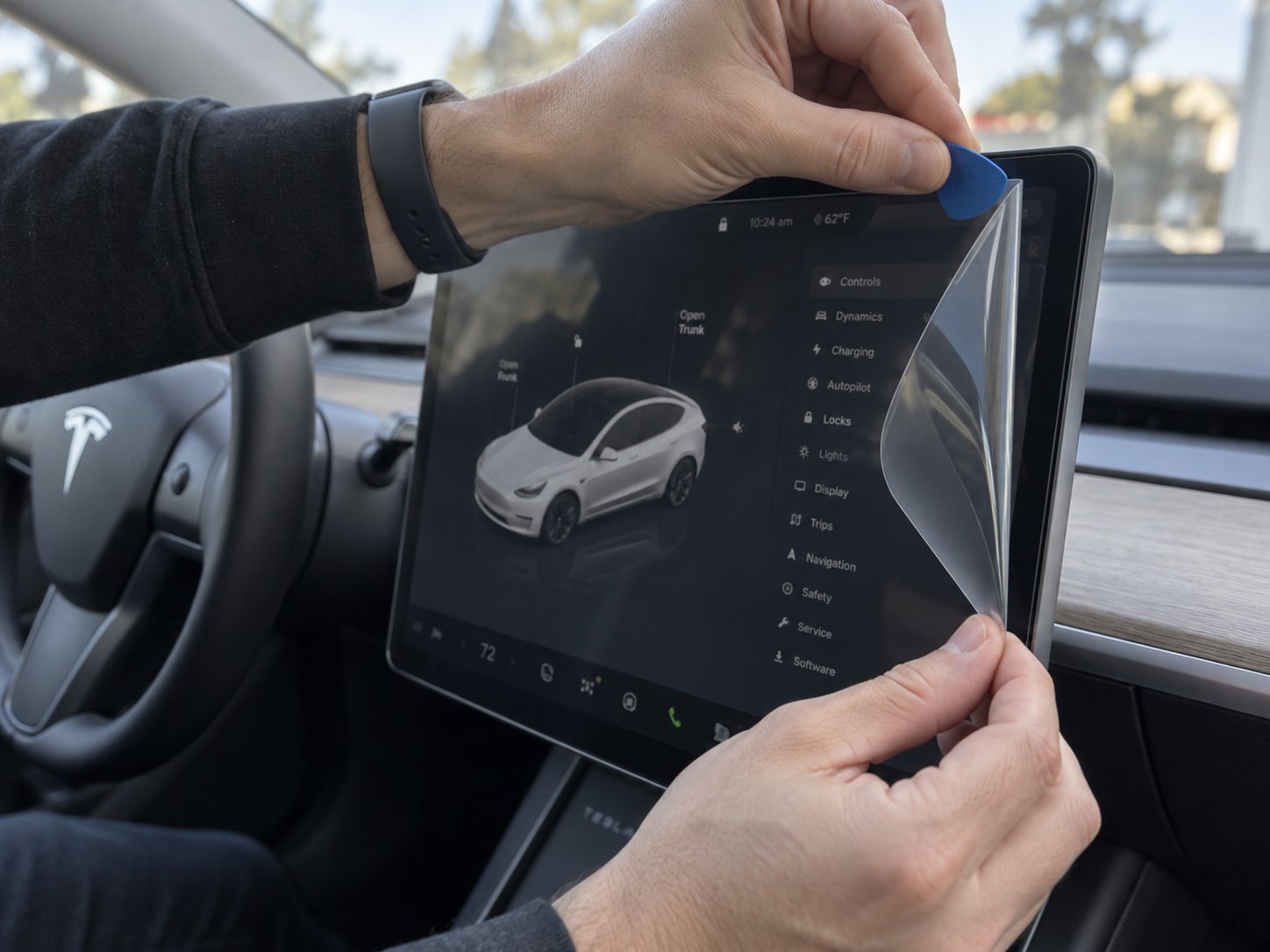
When and Why to Remove Your Tesla Screen Protector
Imagine tapping your Tesla's touchscreen to pull up the tesla trip planner for a weekend road trip, and the display barely registers your input. Or maybe you notice a web of cracks spreading across the protector after a stray object hit the dash. Whether you're dealing with an emergency situation or simply upgrading to a higher-quality protector, knowing how to remove tesla screen protector safely is essential — and it's not as straightforward as peeling a film off your phone.
Tesla owners typically fall into two camps when it comes to removal. The first is planned removal: you're swapping out an old protector for a better option, switching from glossy to matte, or simply prefer the bare screen look. The second is emergency removal — a cracked protector creating sharp edges, persistent touch-responsiveness problems, or edge lifting that's become a distraction every time you glance at the display. Some owners have even reported that after certain software updates, their screen protector began interfering with touchscreen calibration, creating ghost touches or unresponsive zones that make navigating controls frustrating on everything from a Model 3 to a Model S Plaid.
This guide covers all Tesla models — Model 3, Y, S, and X — with tips tailored to each vehicle's screen size and mounting style. The techniques here work whether you're figuring out how to fix broken screen protector issues or performing a clean swap on a protector that's simply seen better days.
Signs Your Tesla Screen Protector Needs Replacement
Not sure if it's time? Here are the most common visual and functional red flags:
- Persistent bubbling — air pockets that reappear after pressing them out, especially along edges
- Edge peeling — corners or sides lifting away from the display surface
- Yellowing or haze — discoloration that reduces screen clarity and color accuracy
- Cracked or chipped glass — any fracture in a tempered glass protector, no matter how small
- Reduced touch sensitivity — delayed or missed inputs when tapping, swiping, or pinching to zoom
- Software update conflicts — touchscreen calibration issues appearing after OTA updates, where the protector's thickness or adhesive layer disrupts the display's digitizer
If you're experiencing even one of these, removal is the right call. Leaving a failing protector in place can actually make things worse — trapped moisture under a peeling edge, for instance, can leave adhesive residue that's far harder to clean later.
Why Tesla Screens Need Special Care During Removal
Here's where things differ from swapping a protector on your smartphone. Tesla's 15-inch and 17-inch infotainment displays have significantly more surface area, which means the adhesive layer covers a much larger footprint. That extra coverage creates stronger suction between the protector and the screen — you can't just casually flick up a corner and peel it away in one motion.
Tempered glass protectors, the most popular choice for Tesla screens, also carry a unique risk. Their rigidity means they resist bending, so pulling too aggressively can cause the glass to snap mid-removal, sending fragments across your dashboard or, worse, scratching the display underneath. The oleophobic coating on Tesla's factory screen is surprisingly delicate, and one careless scrape with a sharp edge can leave a permanent mark on a touchscreen that costs well over $1,000 to replace.
The good news? With the right tools and technique, the process is quick and completely safe — and that starts with gathering everything you'll need before you touch the screen.
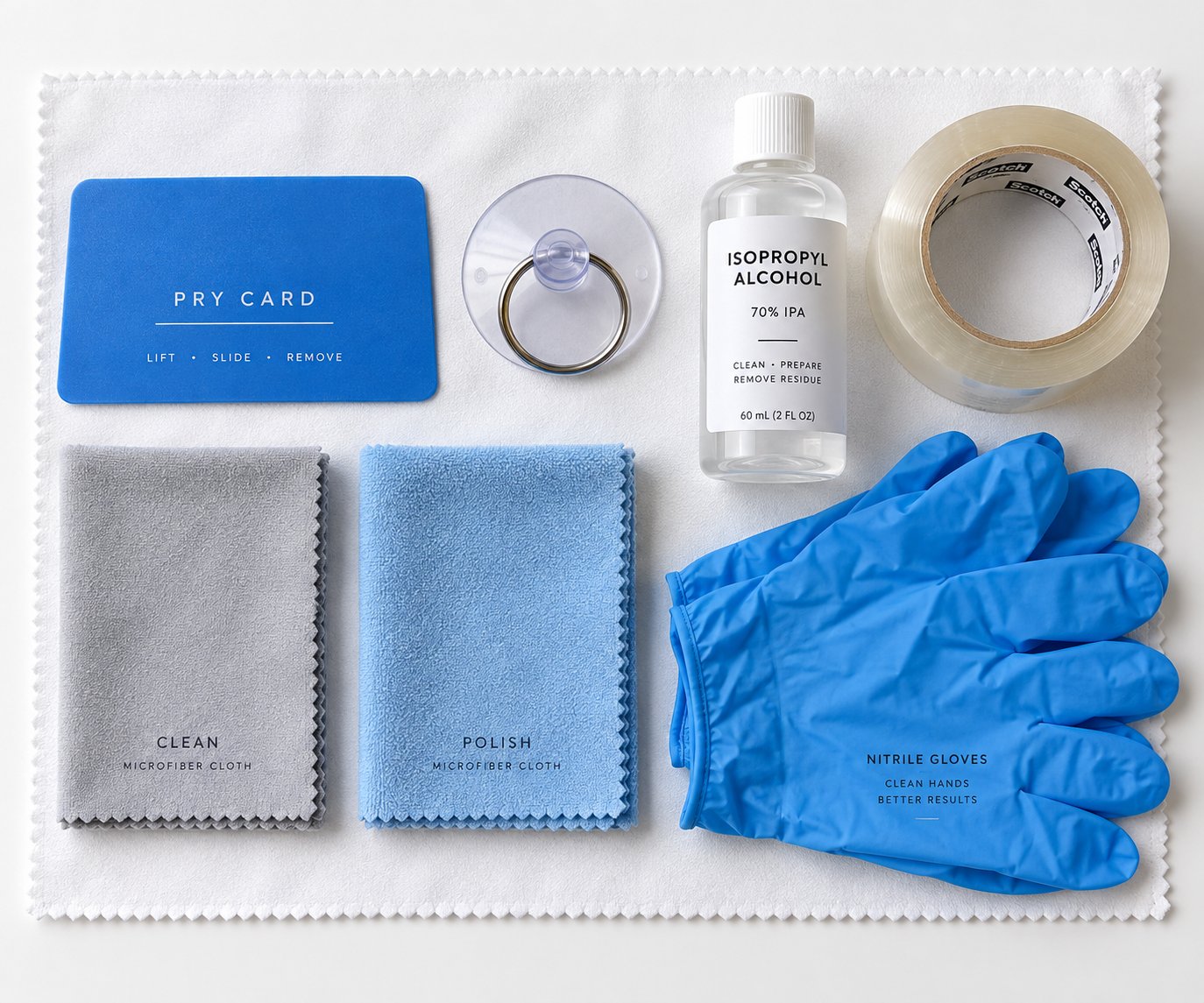
Step 1 – Gather Your Tools and Materials Before Removal
Jumping straight into peeling without the right supplies is one of the fastest ways to damage your Tesla's display — or at least make the job three times harder than it needs to be. Think of this step the way you'd approach tesla smart preconditioning before a cold-weather drive: a little preparation upfront saves you from headaches down the road. Spending five minutes gathering the correct tools means you won't have to pause mid-removal to hunt for a cleaning cloth while adhesive residue dries onto the screen.
Essential Tools for Safe Removal
You don't need anything exotic. Most of these items are already in your home, and anything you're missing costs just a few dollars. Here's the complete checklist:
- Thin plastic pry tool or old credit card — this is your primary edge-lifting tool. Plastic is soft enough to slide between the protector and the display without scratching the oleophobic coating. Never substitute a metal spudger, razor blade, or knife, no matter how careful you think you can be.
- Small suction cup — optional, but extremely helpful for Tesla's large-format screens. A suction cup designed for phone or tablet repair works perfectly. It gives you controlled upward pull on stubborn protectors without bending the glass at a harsh angle.
- Microfiber cloths (at least two) — one for wiping adhesive residue during removal, and a second clean one for the final polish. Paper towels and tissues contain wood fibers that act like fine sandpaper on delicate screen coatings, so skip those entirely.
- Isopropyl alcohol at 70% concentration — this is the sweet spot for dissolving adhesive residue without being overly aggressive. Higher concentrations like 90% or 99% evaporate too fast to be effective and carry a greater risk of stripping the screen's protective coatings with repeated use. Use it sparingly and only on residue spots, not as a general screen cleaner.
- Spray bottle with distilled water — distilled water avoids the mineral deposits that tap water leaves behind. A light mist helps loosen adhesive edges and keeps dust from settling on the exposed screen during removal.
- Clear packing tape — if you're dealing with a cracked protector, tape helps hold shattered fragments together during removal. Even for intact protectors, a strip of tape pressed onto a stubborn corner can give you a grip to start the peel.
- Thin nitrile or work gloves — essential for cracked glass situations, and helpful in general to keep fingerprint oils off the freshly exposed screen.
Lay everything out on a clean surface next to your vehicle before you begin. Once you start lifting the protector, you want both hands free and your supplies within arm's reach — not buried in the trunk.
Choosing the Right Replacement Protector
If you're planning to install a new protector right after removal, have it unboxed, inspected, and ready to go. Your bare Tesla screen is a magnet for dust and fingerprint oils the moment it's exposed, so minimizing that window is critical. Anyone who's spent time on forums like leasehacker comparing Tesla ownership costs knows that protecting a touchscreen worth over $1,000 to replace isn't something you want to leave to chance.
Three main types of replacement protectors are available for Tesla screens, and each serves a different purpose:
- Tempered glass — offers the highest scratch and impact resistance with a smooth, glass-like feel that closely matches the factory screen
- Clear film — thinner and more flexible, providing basic scratch protection with a barely-there profile
- Matte anti-glare — reduces fingerprint visibility and cuts sun glare while driving, trading a small amount of screen clarity for improved usability in bright conditions
Having your replacement staged and ready is especially important if you're upgrading. CUTIM's Tesla screen protectors, for example, come in tempered glass and matte anti-glare variants purpose-built for Tesla Model 3, Y, S, and X screen dimensions — so you get precise alignment without trimming or guesswork. Keeping a Tesla-specific protector on hand means you can go from removal to reinstallation in a single session, rather than leaving the screen unprotected for days while you wait for a delivery.
Pro tip: Always have your replacement protector, cleaning supplies, and workspace fully staged before you begin removal. Once the old protector comes off, the clock starts on dust and oil accumulation.
With your tools laid out and your replacement protector within reach, the next priority is preparing the vehicle itself — specifically, powering down that touchscreen so it doesn't fight you during the process.
Step 2 – Power Down and Prepare the Touchscreen
Your tools are staged, your replacement protector is ready — but before you touch the screen itself, you need to shut it down. An active Tesla display isn't just a flat slab of glass; it's a heat-generating, touch-sensing surface that will actively work against you if you try to peel a protector while it's running.
Power Down the Touchscreen Safely
Tapping and swiping on a live screen while trying to lift adhesive edges creates phantom inputs — you might accidentally open apps, change vehicle settings, or trigger navigation to somewhere like arizona mills shopping centers halfway across the state. More importantly, an active display generates enough heat to make adhesive behavior unpredictable, softening it in some spots while keeping it rigid in others.
Here's how to remove screen protector interference by powering down first:
- Sit in the driver's seat and tap Controls on the touchscreen
- Scroll down and select Safety
- Tap Power Off
- Do not touch the screen, brake pedal, or open any doors for at least two full minutes
That two-minute wait isn't arbitrary. It allows the display's processor to fully shut down and the screen surface to cool slightly. Skipping this step means you're fighting both phantom touches and warm adhesive — neither of which makes the job easier.
Set Up Your Workspace
Where you park matters more than you'd think. Direct sunlight heats the screen and the adhesive layer beneath the protector, causing the glue to behave erratically — too sticky in some areas, too loose in others. Park in a garage or shaded spot, but make sure you still have good lighting. You need to clearly see the protector's edges, any existing lift points, and adhesive residue as you work.
Before starting, drape a clean microfiber cloth across the dashboard directly below the screen. This catches any debris, adhesive flakes, or glass fragments that fall during removal — keeping them out of air vents and dashboard crevices where they're nearly impossible to retrieve.
Removing an aftermarket screen protector does not void your Tesla vehicle warranty. The protector sits on top of the factory display as a user-applied accessory, so Tesla's warranty coverage for the touchscreen remains intact.
That's a concern that comes up constantly in owner forums, and it's worth putting to rest before you begin. Your warranty is safe — your only real risk is to the screen's surface itself, which is exactly why proper technique during the next step matters so much: getting that first edge lifted cleanly.
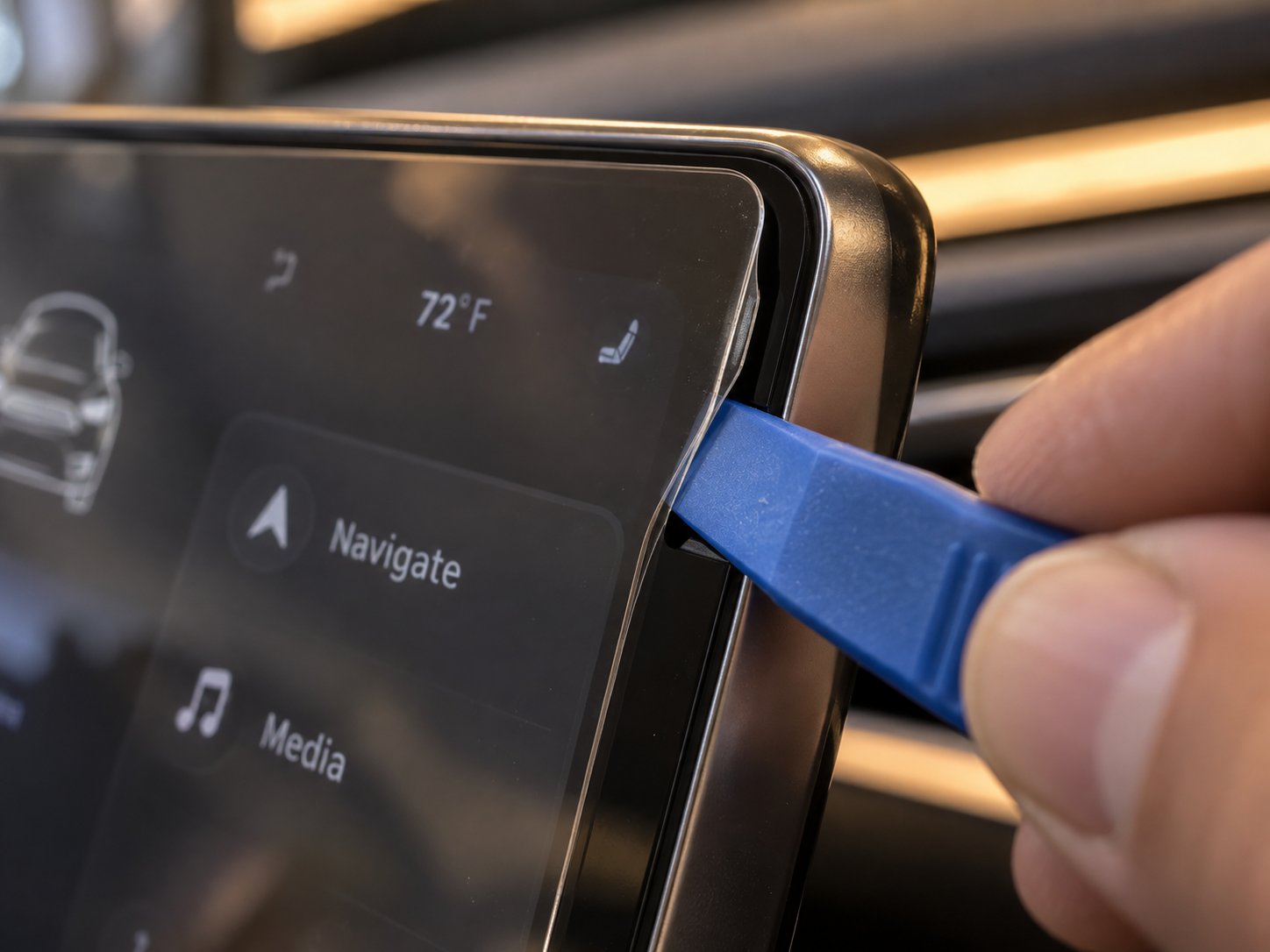
Step 3 – Lift the Edges Without Scratching the Display
This is the moment that makes or breaks the entire process. Every scratch, every chip, every damaged pixel that results from a bad screen protector removal traces back to one thing — how the first edge was lifted. Get this step right, and the rest is smooth sailing. Rush it or grab the wrong tool, and you're staring at a permanent mark on a display that costs a small fortune to replace.
Locate the Best Starting Corner
Before you pry anything, take a close look at all four corners and edges of the protector. You're hunting for a natural entry point — any spot where the adhesive has already begun to separate from the screen. Common giveaways include:
- A visible edge lift — even a hairline gap between the protector and the display bezel is enough to work with
- A small bubble near a corner — trapped air means the adhesive isn't fully bonded in that spot
- A slight curl or peel — especially common on protectors that have been on for a year or more
Found one? That's your starting point. If the protector is still perfectly flush all the way around — which often happens with high-quality tempered glass — focus on the bottom corners of the screen. On most Tesla models, the bottom edge sits closest to the dashboard and is the most accessible angle for sliding a tool underneath without straining your wrist or applying awkward pressure.
Use your fingernail or, better yet, the thin plastic pry tool from your supplies. Gently wedge the edge of the tool between the protector and the screen bezel, applying light lateral pressure rather than pushing straight down into the glass. You'll notice the protector begin to separate with a soft click or subtle shift — that tiny gap is all you need to get started.
Here's the critical rule: never use metal tools, razor blades, or box cutters. It doesn't matter how steady your hands are. Metal edges are harder than the oleophobic coating on Tesla's factory display, and a single slip can gouge a scratch that no amount of cleaning or polishing will remove. This is especially true if you've encountered a tesla tire installation error and already feel frustrated — stepping away from the vehicle to cool off is always better than rushing a delicate screen removal with the wrong tool.
Use a Pry Tool or Suction Cup for Stubborn Edges
Some protectors simply refuse to budge at the corners. Premium tempered glass protectors with full-adhesive backing — as opposed to border-only adhesive — bond incredibly tightly across the entire surface. When fingernails and plastic pry tools can't find a gap, the suction cup technique is your best friend.
Here's how it works:
- Press a small suction cup firmly onto the protector's surface near one corner, roughly half an inch from the edge
- Pull gently upward — not at an angle, but straight up. You're not trying to rip the protector off; you're creating just enough vertical separation to expose a tiny gap at the edge
- Slide the plastic pry tool into that gap as soon as you see or feel the slightest lift. Hold the suction cup in place while you work the pry tool a few millimeters further along the edge
- Release the suction cup once the pry tool is securely wedged. The protector should now have enough separation to continue lifting manually
This method works exceptionally well on Tesla's large displays because the suction cup distributes pulling force evenly rather than concentrating stress on a single point. Think of it as the difference between pulling a sticker off with tweezers versus peeling it with your whole hand — distributed force prevents cracking.
Owners who rely on tesla stop mode for precise parking control already understand the value of measured, deliberate inputs. The same philosophy applies here. Slow, controlled movements produce clean results.
If you feel significant resistance at any corner, stop immediately and try a different corner rather than forcing it. Excessive force can crack the protector into sharp fragments directly on top of your touchscreen.
Patience at this stage pays off enormously. A cleanly lifted edge — even just a quarter inch of separation — sets up the entire next phase: peeling the full protector away from the display in one smooth, controlled motion.
Step 4 – Peel the Protector Off the Display Smoothly
You've got a lifted edge — maybe a quarter inch, maybe a full corner. That small separation is your launchpad, and everything from here depends on how you peel, not just that you peel. The technique matters far more on Tesla's oversized infotainment displays than it ever does on a phone, and the difference between a clean removal and a sticky, fractured mess comes down to angle, speed, and hand placement.
Peel Slowly at a Low Angle
Your instinct might be to grab that freed corner and pull straight up. Resist it. Pulling at a 90-degree angle concentrates all the force at a single separation line, which does two things you don't want: it dramatically increases the chance of the tempered glass snapping in half, and it tears adhesive unevenly, leaving behind patchy residue that's a nightmare to clean.
Instead, peel the protector back at approximately a 15-to-20-degree angle — nearly flat against the screen surface, as though you're peeling a large sticker off a table rather than ripping tape off a box. This low-angle approach distributes the peeling force across a much wider band of adhesive, allowing it to release gradually and uniformly. You'll feel the difference immediately; the protector separates with a smooth, quiet release rather than a series of sticky jolts.
For Tesla's 15-inch screens on the Model 3 and Model Y — including the refreshed tesla model y 2026 — and the 17-inch displays on Model S and X, this low angle is especially critical. The sheer surface area means the adhesive's cumulative grip is enormous. Pulling straight up on a protector bonded across 15 inches of glass is like trying to lift a suction cup off a marble countertop by yanking the handle — you need to break the seal progressively, not all at once.
If you've ever browsed forums while researching a tesla model y speed range test or comparing ownership options on sites like bayareafastrak.org for toll costs, you know Tesla owners love data-driven technique. The physics here are simple: lower angle equals less concentrated stress equals a clean, intact removal.
Handle the Protector with Both Hands
Once you've freed roughly two inches of the protector's edge, switch from single-hand lifting to a two-hand technique. One hand holds the freed edge and maintains a slow, steady peel. The other hand rests gently on the still-attached portion of the protector, pressing down lightly to control exactly where the adhesive separates from the screen. This creates a predictable, guided separation line that moves across the display at whatever pace you dictate.
The ideal peeling speed is slow and consistent — think 30 to 60 seconds for the entire protector. Rushing the process is how owners end up with a protector that snaps halfway through or adhesive patches baked onto the screen surface. If you feel the glass begin to flex or bow excessively at any point, pause immediately. Slide your plastic pry tool along the separation edge to advance the release point, then resume peeling. Forcing a flex is how tempered glass protectors crack mid-removal, and a cracked protector mid-peel is a far messier problem than a stubborn adhesive bond.
Buying a tesla certified pre owned vehicle sometimes means inheriting a screen protector that's been on for years, with adhesive that's had extra time to cure and harden. These aged protectors often require more patience during this step — shorter peel intervals with pry tool assists in between — but the low-angle, two-hand approach still applies.
Here's a quick-reference peeling sequence you can glance at while working:
- Begin peeling from the lifted corner, maintaining contact with the screen surface
- Keep the protector at a 15-to-20-degree angle throughout — nearly flat, never perpendicular
- Use both hands once two inches are free: one peeling, one stabilizing
- Maintain a steady, consistent speed — 30 to 60 seconds total, no sudden pulls
- Set the removed protector aside sticky-side up on a clean surface to prevent adhesive from picking up debris
That last point — sticky-side up — is a small detail that matters if you want to inspect the adhesive pattern afterward. Uneven adhesive residue left on the protector tells you where to focus your cleaning efforts on the screen itself. And cleaning that residue thoroughly is exactly where the process heads next, especially if your protector came off in pieces rather than one clean sheet.
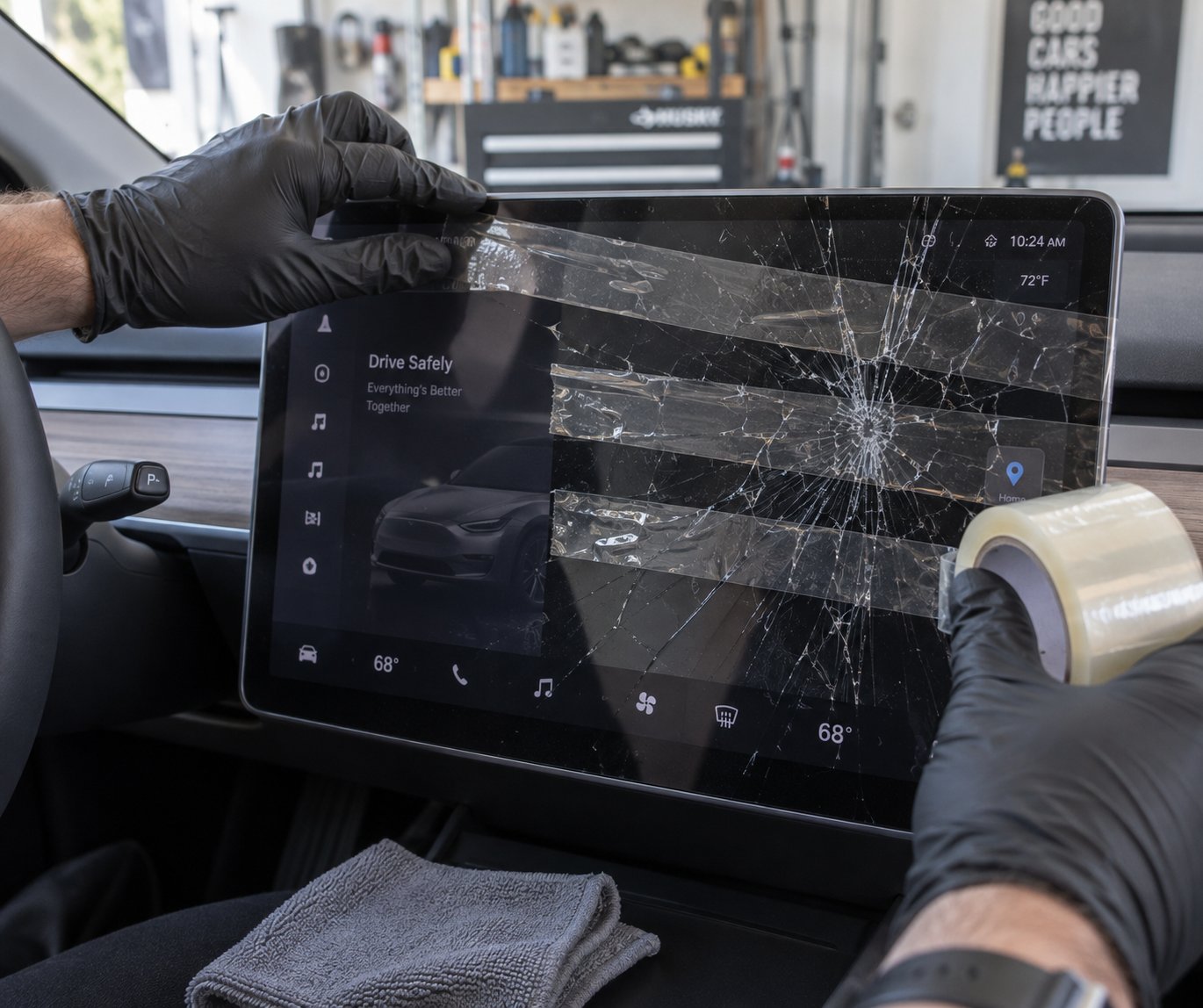
Step 5 – Safely Remove a Cracked or Shattered Protector
A clean, intact protector peels off in one smooth motion. A cracked one? That's a completely different animal. Shattered tempered glass on a Tesla's 15-inch or 17-inch display turns a five-minute job into a careful extraction that demands patience, the right technique, and a healthy respect for tiny glass fragments that can scratch your screen — or slice your fingers.
If your protector cracked from an impact — maybe a phone dropped from a dash mount, a tool slid off the center console, or a stray object struck the screen during a road trip — the temptation is to rip the whole thing off and be done with it. That's the single worst thing you can do. Cracked tempered glass behaves nothing like cracked plastic film. It fractures into small, sharp-edged pieces held loosely by the adhesive layer, and one aggressive pull can scatter those fragments across your dashboard, into air vents, and — most critically — across the bare display surface where they act like sandpaper.
Safety Precautions for Broken Glass
Before you touch a single shard, gear up. Thin nitrile gloves or snug-fitting work gloves are non-negotiable here. Tempered glass fragments may be small, but their edges are razor-sharp, and working bare-handed on a cracked protector almost always results in nicked fingertips. You'll need the dexterity that thin gloves provide — bulky winter gloves won't cut it — so nitrile medical-style gloves are ideal.
Here's the trick that separates a clean removal from a disaster: apply strips of clear packing tape across the entire cracked surface before you start peeling. Lay the tape in overlapping rows, pressing it firmly against the broken glass. This essentially laminates the shattered protector back into a semi-cohesive sheet, holding fragments in place during removal instead of letting them scatter. Think of it as creating a temporary safety net — the same way a car windshield's laminate layer keeps broken glass from spraying into the cabin during a collision.
The tape technique is especially important on Tesla's large-format screens. A cracked protector on a phone might produce a dozen fragments. A cracked protector on a 15-inch Model 3 or Model Y display can produce hundreds — and each one is a potential scratch waiting to happen. Much like how enthusiasts obsess over choosing the right tires — debating whether a set of Pilot Sport 4S rubber delivers the grip their performance sedan demands — protecting your Tesla's display surface during a cracked removal is all about choosing the right approach for the conditions.
Remove in Sections if Necessary
A taped, cracked protector may still come off in one piece if the fractures are minor — a single crack line or a small spider web in one corner. Gently lift from the edge farthest from the damage using the same low-angle, two-hand technique from the previous step, and let the tape hold everything together as you peel.
Badly shattered protectors are a different story. When the glass has fractured into a dense web of pieces, attempting a single continuous peel will cause sections to break free, pop loose, and slide across the screen. Instead, work in manageable sections:
- Start at the outside edges and work inward, where the adhesive bond is typically weakest
- Use the plastic pry tool to gently lift one section at a time — roughly three to four inches wide
- After removing each section, immediately wipe the exposed screen area with a clean microfiber cloth to pick up any stray glass particles before they get pushed around during the next section's removal
- Place each removed section sticky-side up on a sheet of newspaper or directly into a small trash bag to contain loose fragments
The inward-from-the-edges approach matters because the center of the screen typically has the strongest adhesive bond and the most severe fracture concentration. Clearing the perimeter first gives you clean edges to grip and reduces the total surface area pulling back against you as you reach the middle.
Patience isn't optional during this process — it's the single most important factor. Rushing a cracked protector removal creates the highest risk of scratching your Tesla's underlying display. A replacement screen can rival a tesla battery replacement cost in expense, so investing an extra ten minutes in careful extraction is time well spent. Some Tesla owners describe their vehicles as the tesla of motorcycles for the electric car world — precision-engineered machines that reward careful handling. The same philosophy applies to their screens.
Here are the most common mistakes to avoid when dealing with a cracked or shattered protector:
- Pulling cracked pieces upward too fast — creates uncontrolled separation that launches small glass fragments across the dashboard and into hard-to-reach crevices
- Using bare fingers instead of tools on broken edges — almost guarantees cuts, and blood on a touchscreen creates its own cleaning headache
- Neglecting to tape shattered areas before peeling — without tape, cracked tempered glass disintegrates into loose shards the moment you disturb the adhesive bond
- Skipping gloves entirely — even hairline cracks produce edges sharp enough to slice skin, and you won't feel it until you see the blood
- Ignoring small fragments left on the screen surface — a single tiny shard trapped under your cleaning cloth will scratch the display as you wipe, undoing all your careful work
Once every piece is off and you've done an initial wipe-down, resist the urge to call it done. Invisible adhesive residue and micro-fragments almost always remain on the screen surface, and cleaning them properly requires a dedicated process — one that also doubles as your opportunity to inspect the bare display for any damage hidden beneath the old protector.
Step 6 – Clean Adhesive Residue and Inspect the Screen
The old protector is off, the fragments are contained, and your Tesla's bare display is staring back at you for the first time in months — maybe years. It probably doesn't look pristine. Smudges, hazy patches, and faint sticky spots are almost guaranteed, regardless of how carefully you peeled. That's completely normal. What matters now is how you clean it, because the wrong technique or the wrong product can do more damage in thirty seconds than the entire removal process.
Remove Adhesive Residue from the Tesla Screen
Grab a fresh microfiber cloth — not the one you used to catch glass fragments — and lightly dampen one corner with 70% isopropyl alcohol (IPA). You want the cloth damp, not dripping. Excess liquid can seep into the edges of the display housing and potentially reach internal electronics, including sensitive components like the power electronics module (PEM) that manages the vehicle's charging and drivetrain systems. A damp corner of cloth is all you need.
Here's the cleaning technique that produces the best results without risking surface damage:
- Wipe in straight, overlapping strokes — move horizontally across the screen from one side to the other, slightly overlapping each pass. Circular motions feel intuitive but actually spread adhesive residue into thin films that are harder to see and harder to remove.
- Work from top to bottom — gravity is your friend. Any residue or cleaning solution that runs downward gets caught by the microfiber cloth draped on the dashboard below.
- For stubborn adhesive spots, let the IPA dwell — fold the damp cloth and press it gently against the sticky patch for 10 to 15 seconds. The alcohol softens the adhesive bond, making it easy to lift with a single wipe rather than repeated scrubbing that wears down the oleophobic coating.
- Flip the cloth frequently — once a section of the microfiber picks up adhesive, it becomes a smearing tool instead of a cleaning tool. Use fresh surfaces of the cloth for each pass.
Equally important is knowing what not to use. Household cleaners like Windex contain ammonia, which attacks the oleophobic layer that gives your Tesla's screen its smooth, fingerprint-resistant feel. Acetone — found in nail polish remover — is even more aggressive, capable of stripping coatings and clouding the display surface in seconds. Abrasive cloths, paper towels, and even some "screen cleaning" wipes sold at gas stations contain fibers rough enough to leave micro-scratches. Stick with microfiber and 70% IPA exclusively.
Owners of a 2024 Tesla Model Y or any recent refresh should pay extra attention during this step. Newer displays often feature updated anti-reflective and oleophobic coatings that are thinner and more sensitive to chemical exposure than earlier production runs. Less product, more patience — that's the formula.
Inspect the Display for Damage
Cleaning is only half the equation. Once the screen is free of residue and completely dry, power the touchscreen back on by pressing the brake pedal or tapping the screen and waiting for it to wake. Open a blank white screen — the web browser navigated to a plain white page works perfectly — and examine the entire display surface under bright, direct light.
You're looking for four specific issues, each with a different cause and a different fix. Here's a quick-reference inspection checklist:
| Issue | What to Look For | Action |
|---|---|---|
| Scratches | Fine lines or marks visible under bright, angled light on a white background | Contact Tesla Service — display scratches are permanent and may warrant screen replacement if they affect visibility or touch function |
| Adhesive Hazing | Foggy or cloudy patches that remain after initial cleaning, especially noticeable against dark UI backgrounds | Re-clean with 70% IPA using the dwell technique — let the damp cloth sit on the haze for 15 seconds, then wipe in straight strokes. Repeat if needed |
| Touch Dead Zones | Areas of the screen that don't respond to taps or swipes, particularly along edges where adhesive was thickest | Recalibrate the touchscreen via Settings, or perform a scroll-wheel reboot (hold both steering wheel scroll buttons for 10 seconds). If unresponsive areas persist, schedule a service appointment |
| Oleophobic Coating Wear | Increased fingerprint smudging and a "grabby" feel when swiping, compared to areas of the screen that were protected | Apply an aftermarket oleophobic coating spray designed for touchscreens — this restores the slick feel and fingerprint resistance of the factory coating |
Scratches are the most serious finding and the one every owner dreads. The good news is that they're rare when proper removal techniques are followed. Adhesive hazing is by far the most common post-removal issue, and it almost always resolves completely with a second round of IPA cleaning. If you spot hazing, don't panic — it's dried adhesive residue, not permanent screen damage.
Touch dead zones occasionally appear after protector removal, but they're usually temporary. A thick screen protector — especially one that's been in place for years — can slightly alter how the display's digitizer interprets touch input. The recalibration resets that baseline. On most Tesla models, a simple scroll-wheel reboot clears the issue within a minute or two.
Oleophobic wear is the subtlest problem and the easiest to live with — but it's also the easiest to fix. A small bottle of aftermarket oleophobic coating costs under ten dollars and takes five minutes to apply. You'll notice the difference immediately when your finger glides across the freshly coated surface instead of dragging.
With the screen cleaned, inspected, and confirmed damage-free, you're in the ideal position to install a fresh protector. The display is as clean as it's going to get, dust hasn't had time to settle, and you know exactly what condition the surface is in — which means you can choose your next protector with confidence rather than guesswork.
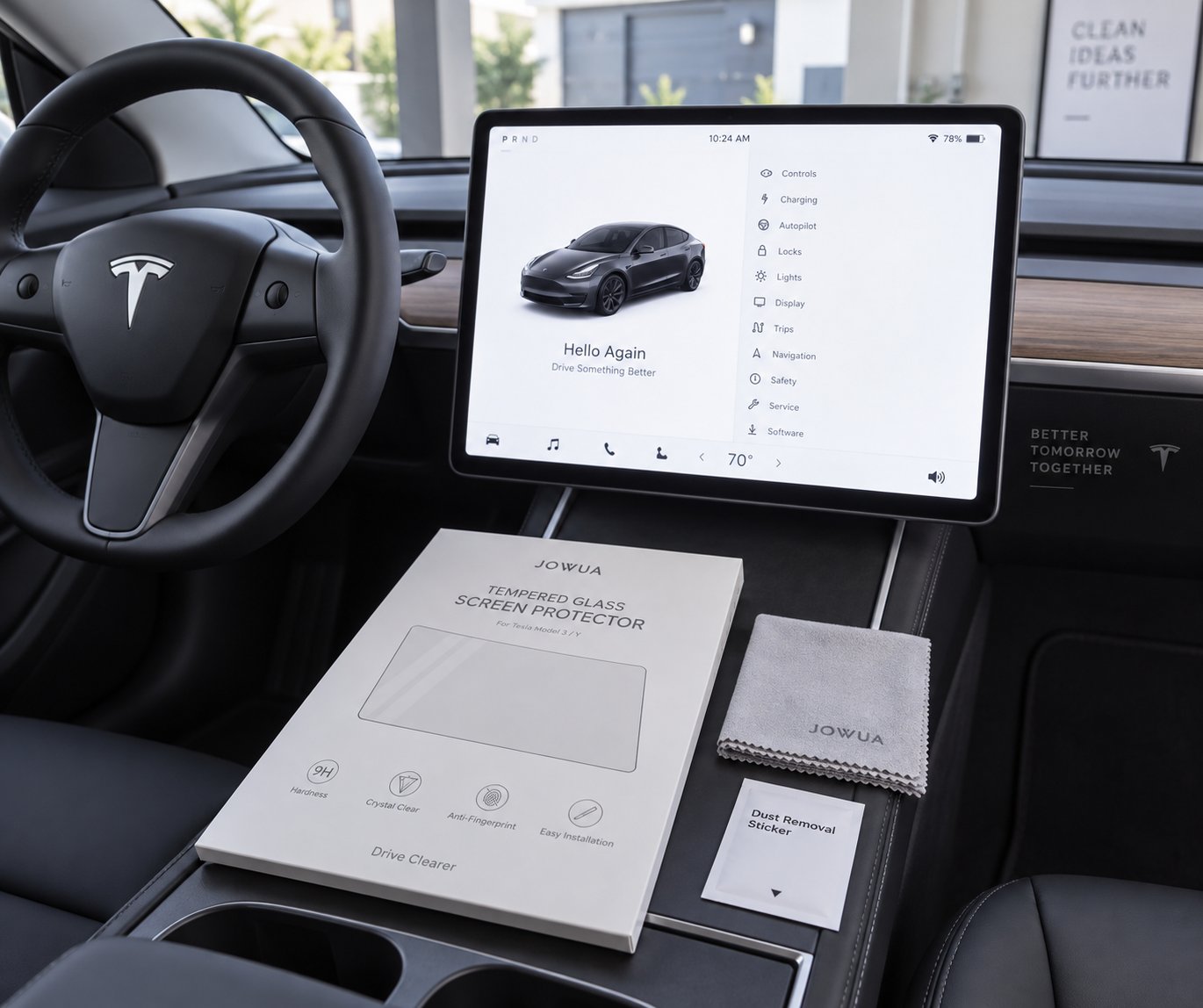
Step 7 – Prepare for a Fresh Screen Protector Installation
Your Tesla's screen is clean, inspected, and residue-free. This is the golden window — the brief stretch of time between removing the old protector and exposing the bare display to the inevitable accumulation of dust, fingerprint oils, and airborne particles that will make installing a new protector significantly harder. If you staged your replacement protector and supplies during Step 1, you're about to see that foresight pay off.
Prep the Screen for a New Protector
Even after a thorough IPA cleaning, microscopic dust particles and stray microfibers settle onto the screen within minutes — especially in a car interior where fabric seats, headliners, and floor mats constantly shed invisible fibers into the air. The goal is to create the cleanest possible surface right before you lay the new protector down, and that takes a final three-step prep sequence:
- Final wipe with a lint-free cloth — use a fresh, dry microfiber cloth (not the one you cleaned adhesive with) and make slow, deliberate passes across the entire display. This removes any residual moisture from the IPA step and picks up particles that landed during your inspection.
- Dust-removal sticker pass — most quality screen protector kits include small adhesive dust-removal stickers. Press these gently against the screen surface, lift, and repeat across every section. They pull stubborn microfibers that even a clean cloth leaves behind. If your kit doesn't include them, a small strip of Scotch tape pressed sticky-side down works in a pinch.
- Create a dust-free environment — close all windows, shut all doors, and turn off the climate system entirely. The HVAC blows cabin air across the dashboard, carrying particles directly onto your freshly cleaned screen. A closed, still car interior is the closest you'll get to a clean room without actually building one in your garage.
Timing matters here. Installing your new protector immediately after removal and cleaning delivers the best results because the screen hasn't had time to collect contaminants. Owners who wait a day or two — planning to "get to it this weekend" — inevitably find themselves re-cleaning the display and battling trapped dust bubbles that weren't there when the screen was first prepped. Treat the removal and reinstallation as a single continuous session whenever possible.
If you've ever taken a tesla demo drive at a showroom, you probably noticed how flawless the display looks — no bubbles, no dust, no misalignment. That's because those protectors were installed on a perfectly clean screen in a controlled environment. You're replicating that same scenario right now, inside your own vehicle.
Choose the Right Replacement for Your Tesla
The protector you just removed might have served you well for years, or it might have been the wrong type for your driving conditions from the start. Either way, this is your chance to make a more informed choice. Three main categories of screen protectors dominate the Tesla aftermarket, and each addresses different priorities:
- Tempered glass — the most popular option for maximum scratch and impact resistance. It feels virtually identical to the bare factory screen — smooth, responsive, and optically clear. Best for owners who want the strongest physical protection without altering the screen's look or touch feel. Ideal if you removed your old protector because it cracked from an impact and you want something equally tough (or tougher) for the replacement.
- Clear film — thinner and more flexible than tempered glass, producing a barely-there profile that's nearly invisible once applied. It won't offer the same impact resistance as glass, but it handles minor scratches well and is easier to apply without bubbles on large surfaces. Best for owners who prioritize a lightweight, unobtrusive layer of protection.
- Matte anti-glare — reduces fingerprint visibility and cuts harsh sun reflections that can wash out the screen while driving, especially on west-facing commutes or during low-angle sunset driving. Trades a small amount of screen sharpness for significantly improved usability in bright conditions. Best for owners who removed their old protector because of glare frustration or constant fingerprint smudging.
The single biggest mistake owners make when choosing a replacement is buying a universal-cut protector and hoping it fits. Tesla's screens aren't standard rectangles — they have specific corner radii, camera cutouts, and bezel dimensions that vary between Model 3, Model Y, Model S, and Model X. A protector cut even a millimeter too large will overlap the bezel and start peeling at the edges within weeks, putting you right back where you started.
CUTIM's Tesla screen protectors solve this problem by offering tempered glass, clear, and matte anti-glare options precision-engineered for each Tesla model's exact screen dimensions. The fit is specific enough that alignment guides built into the packaging line up with the display's edges and corners — no measuring, no trimming, no guesswork. For owners who just spent the last thirty minutes carefully removing an old protector, a purpose-built replacement that drops into place accurately on the first attempt is worth its weight in gold. CUTIM's options also directly address the three most common removal triggers discussed throughout this guide: scratch damage, fingerprint buildup, and sun glare interference.
Whether you drive a Model 3, a long-range Model Y, or an X Tesla with the massive 17-inch landscape display, matching the protector to your exact screen ensures full-edge coverage without the peeling and bubbling that plagued your last installation. And if you're still deciding which variant to choose, consider your primary complaint about the protector you just removed. Was it glare? Go matte. Was it a crack from an impact? Go tempered glass. Was it just old and yellowed? Any of the three will be a dramatic improvement.
Install your new protector within minutes of completing the removal and cleaning process. A freshly prepped screen with no dust, no oils, and no residue gives you the best possible bond and a bubble-free result.
The entire process — from gathering tools through installation of a fresh protector — takes most owners between 20 and 45 minutes, depending on whether the old protector was intact or cracked. That's a small time investment to protect a touchscreen that controls nearly every function in your vehicle, from navigation and climate to media and vehicle settings. A well-chosen, properly installed replacement protector will keep that display looking and performing like new for years to come.
Frequently Asked Questions About Removing Tesla Screen Protectors
1. Can removing a screen protector scratch my Tesla's touchscreen?
Yes, improper removal can scratch the display's oleophobic coating. The most common cause of damage is using metal tools like razor blades or box cutters. Always use a thin plastic pry tool or an old credit card to lift the edges. Pulling too aggressively on a tempered glass protector can also cause it to snap, sending sharp fragments across the screen surface. Following a low-angle peeling technique at roughly 15 to 20 degrees and working slowly minimizes this risk entirely.
2. Does removing a screen protector void my Tesla warranty?
No, removing an aftermarket screen protector does not void your Tesla vehicle warranty. The protector is a user-applied accessory that sits on top of the factory display and is not considered a modification to the vehicle's original components. Tesla's warranty coverage for the touchscreen hardware remains fully intact regardless of whether you apply, remove, or replace a screen protector.
3. What should I use to clean adhesive residue off my Tesla screen after removal?
Use a microfiber cloth lightly dampened with 70 percent isopropyl alcohol. Wipe in straight, overlapping horizontal strokes from top to bottom rather than circular motions. For stubborn sticky patches, press the damp cloth against the residue for 10 to 15 seconds to soften the adhesive before wiping. Avoid household cleaners like Windex, acetone, or paper towels, as these can strip the screen's protective oleophobic coating or leave micro-scratches.
4. How do I safely remove a cracked tempered glass screen protector from a Tesla?
Start by wearing thin nitrile gloves to protect your fingers from sharp edges. Before peeling, apply overlapping strips of clear packing tape across the entire cracked surface to hold fragments together. If the protector is badly shattered, remove it in small sections rather than attempting one continuous peel — work from the outside edges inward. Wipe the exposed screen area with a clean microfiber cloth after each section to pick up stray glass particles before they can scratch the display.
5. What type of replacement screen protector is best for a Tesla touchscreen?
It depends on your priorities. Tempered glass offers the strongest scratch and impact resistance with a feel nearly identical to the factory screen. Matte anti-glare protectors reduce fingerprint visibility and cut sun reflections, making them ideal for bright driving conditions. Clear film provides lightweight, barely-visible protection. For the best fit, choose a protector engineered for your specific Tesla model's screen dimensions, such as CUTIM's Tesla screen protectors, which offer precise-fit tempered glass and matte options for Model 3, Y, S, and X without trimming or alignment guesswork.