
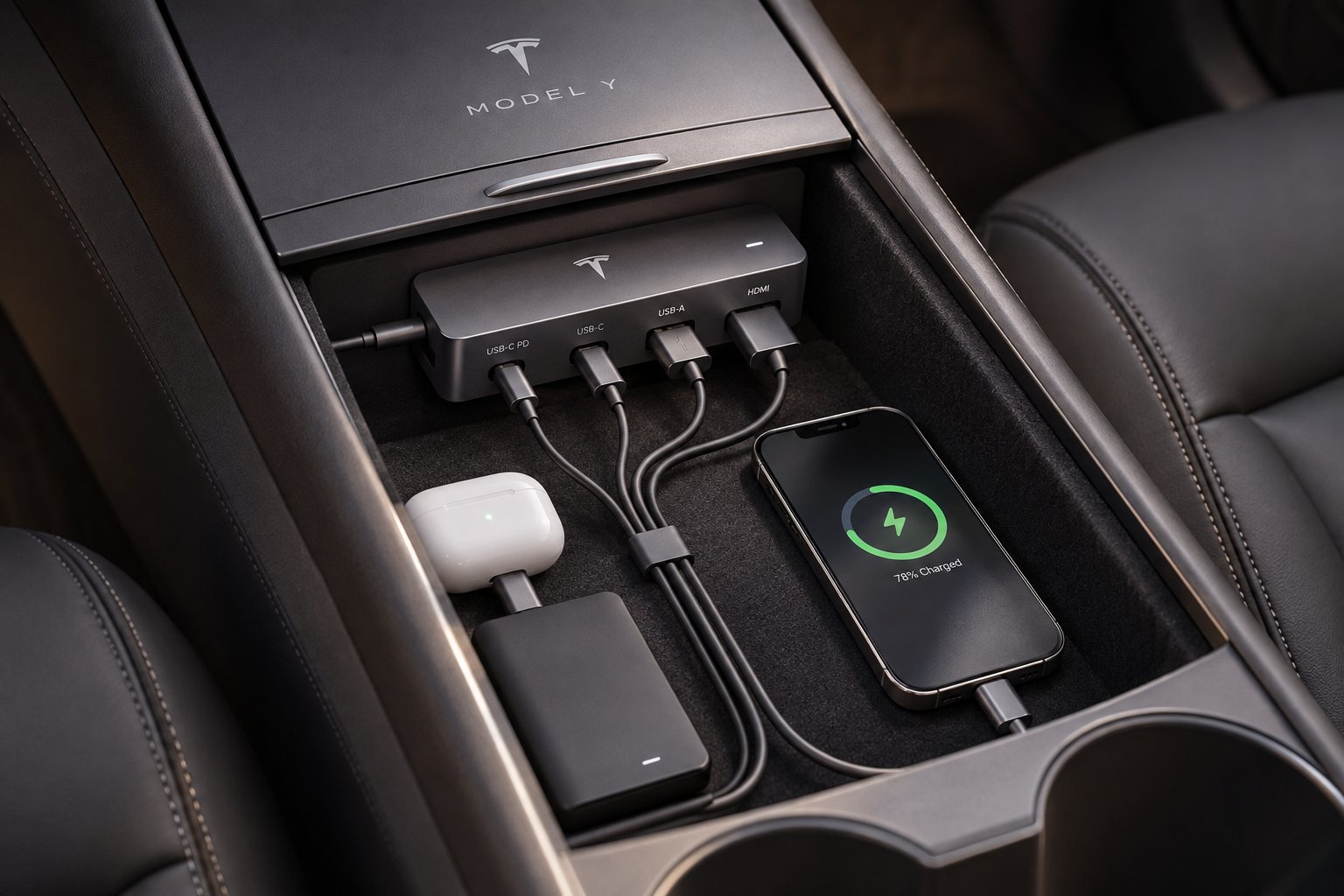
Why Every Model Y Owner Should Consider a USB Hub
Imagine settling into your Model Y for a weekend road trip. Your phone needs to charge and stream music, your partner's phone needs navigation power, a USB drive is recording Sentry Mode footage, and the kids in the back seat are already asking to plug in their tablets. You glance at the center console and realize you're out of ports. This scenario plays out more often than most owners expect — and it reveals a limitation baked into the vehicle's design.
Why the Stock USB Ports Fall Short
The Model Y ships with a modest number of Tesla USB ports relative to the devices a modern household connects. A standard 5-seater configuration includes four USB ports total: one USB-C port in the rear compartment of the center console, two USB-C ports beneath the rear cabin vents, and one USB-A port tucked inside the glovebox, as outlined in Tesla's owner's manual. That glovebox USB-A port comes pre-equipped with a flash drive dedicated to Sentry Mode and Dashcam recording — so it's effectively spoken for the moment you drive off the lot.
That leaves front-seat occupants relying primarily on the wireless charging pad or a single console port for wired charging, navigation audio, and media playback. When multiple passengers need power simultaneously, the math simply doesn't work. This is exactly where a USB hub for Tesla Model Y fills the gap — not as a storage device, but as a port multiplier. It's a distinction worth emphasizing early: a hub expands the number of available connections, but whether each expanded port supports data transfer, charging, or both depends entirely on the hub's specifications. Never assume a charging-capable port also handles data.
Who Benefits Most From a USB Hub
Not every driver feels the pinch right away. But certain owner profiles hit the port ceiling almost immediately:
- Families with multiple devices — Two adults and even one child can easily need three or more charging connections at the same time, especially on longer drives where tablets and phones drain fast.
- Sentry Mode users who still need a free port — Since the glovebox USB-A port is occupied by the Dashcam drive, owners who want to charge a device via the console while keeping Sentry Mode active have very little flexibility without added ports.
- Road-trip drivers powering accessories — Gaming controllers, portable fans, dash-mounted phone holders with powered mounts, and other USB-powered gear all compete for the same limited Tesla Model Y USB ports.
- Rideshare or business drivers — Offering passengers a convenient charging option in the rear seat while keeping front ports available for personal devices requires extra connectivity.
If any of these profiles sound familiar, you're exactly the owner who benefits from understanding not just that a hub helps, but which type of hub matches your specific needs. The differences between hub categories — and the compatibility traps hiding inside them — run deeper than most product listings let on. Those details start with knowing exactly where your ports sit and what each one is built to do.
Where the USB Ports Are Located in Your Model Y
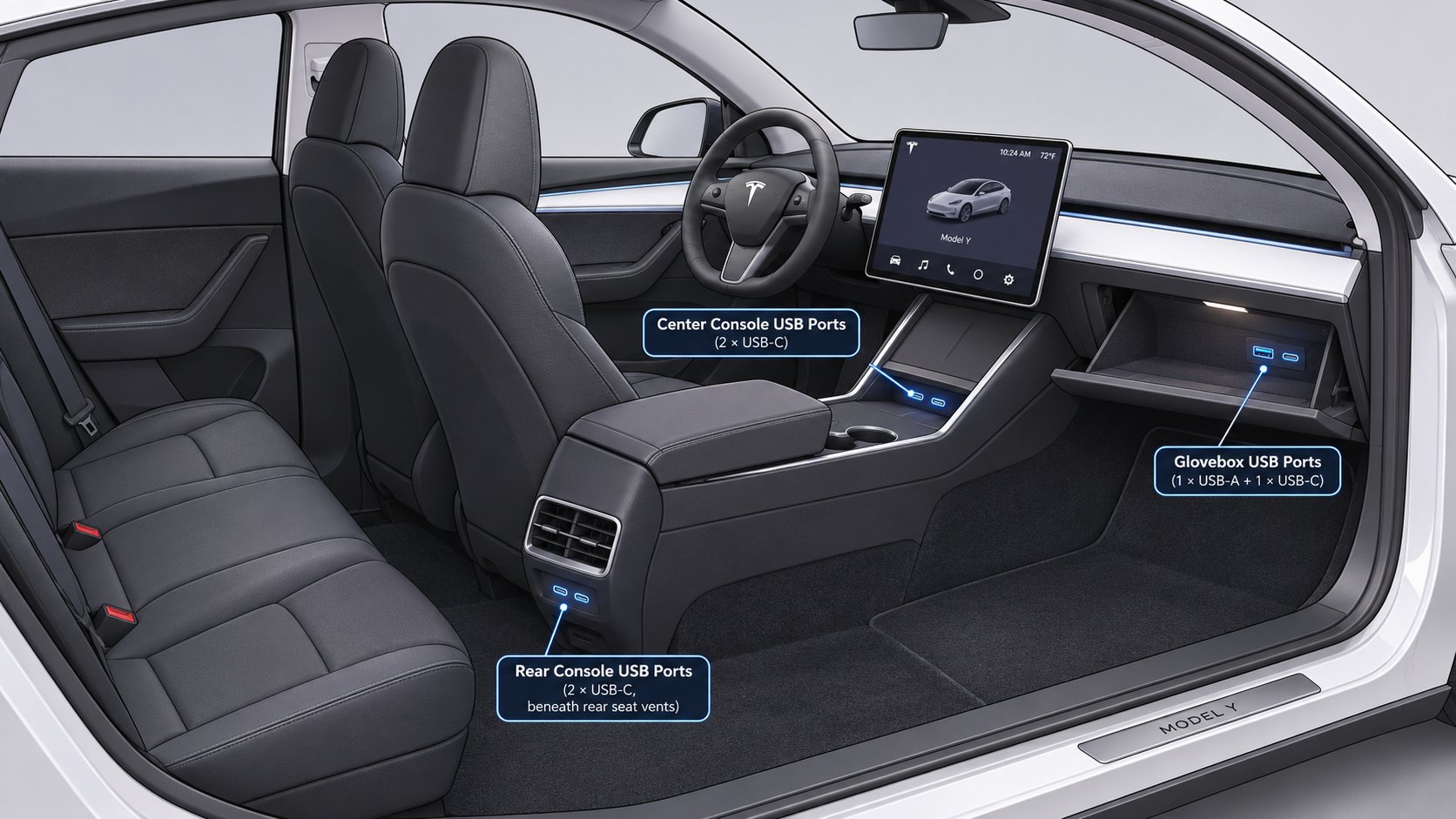
Knowing you need more ports is one thing. Knowing exactly where each factory port sits — and what it's designed to do — is what separates a smart hub purchase from a frustrating return. The Tesla Model Y charging port layout isn't random. Every location serves a specific purpose, and understanding that purpose tells you precisely where a hub adds the most value.
Console and Glovebox Port Locations
Picture yourself sitting in the driver's seat. In the standard 5-seater configuration, here's what you're working with: one USB-C port lives inside the rear compartment of the center console, primarily for charging devices stowed out of sight. Two more USB-C ports sit beneath the rear cabin vents on the back of the center console, giving second-row passengers their own charging access. And one USB-A port is tucked inside the glovebox — already occupied by a pre-installed flash drive dedicated to Sentry Mode and Dashcam recording.
If you have a 6-seater configuration, you'll find two additional USB-C ports beneath the third-row seat cushions, bringing the total to six. But for most owners driving the 5-seater, four ports is the ceiling.
Each location has a distinct job. The glovebox USB-A port prioritizes data throughput — it's where your vehicle writes video footage continuously. The console and rear-vent ports prioritize device charging. Mixing up these roles, like trying to run a Dashcam drive from a console charging port, can create problems that a Tesla USB hub alone won't solve.
| Port Location | Port Type | Primary Function | Notes |
|---|---|---|---|
| Center console (rear compartment) | USB-C | Device charging | Accessed by lifting the console lid |
| Below rear cabin vents | USB-C (x2) | Rear passenger charging | Easily accessible from second-row seats |
| Glovebox | USB-A | Sentry Mode / Dashcam recording | Pre-loaded with a USB flash drive; also supports media playback |
| Below third-row cushions (6-seater only) | USB-C (x2) | Third-row passenger charging | Not available on 5-seater configurations |
One important callout directly from Tesla: the automaker recommends using USB 3.0 compliant cables for all connections. Non-compliant cables can result in slower charging, connection drops, or degraded performance. This applies equally to any hub you add — a quality hub paired with a cheap cable still bottlenecks the entire chain.
How Port Layout Changed With the Model Y Refresh
Here's where compatibility traps start to emerge. The 2020-2025 pre-refresh Model Y and the 2026 "Juniper" refresh are not the same vehicle when it comes to interior layout — and the differences directly affect which Tesla USB hub will physically fit your car.
The Juniper refresh brought a redesigned center console, a new integrated 8-inch rear passenger screen, and reconfigured port positioning. Some reports indicate the Juniper model may have fewer total USB ports than earlier generations, making each remaining port's role even more critical. The rear console assembly itself — which houses USB-C ports, air vents, and the new screen — uses completely different mounting points and electrical connections. A part designed for the pre-refresh generation simply will not fit the Juniper, and vice versa.
What does this mean for hub buyers? A flush-mount hub engineered for the 2022 Model Y center console may not align with the 2026 Juniper console dimensions. A glovebox hub designed around the original port layout could face clearance or connectivity issues in the refreshed interior. The physical space, port spacing, and even the angle of access can differ enough to turn a highly-rated product into something that wobbles, blocks adjacent features, or fails to connect at all.
| Feature | Pre-Refresh Model Y (2020-2025) | Juniper Refresh Model Y (2026+) |
|---|---|---|
| Center console design | Original layout with sliding cover | Redesigned with updated storage and port placement |
| Rear console | Air vents + USB-C ports | Integrated 8-inch screen + air vents + USB-C ports |
| Total USB ports (5-seater) | 4 (3x USB-C, 1x USB-A) | Potentially fewer; verify against your specific build |
| Glovebox USB-A port | Present (Sentry Mode / Dashcam) | Confirm availability on your build |
| Hub fitment compatibility | Broadest aftermarket selection available | Newer category; fewer verified options |
Before you shop for any hub, identify your vehicle generation first. Pre-refresh and Juniper Model Y consoles differ in physical dimensions, mounting points, and electrical connections — a hub designed for one will not reliably work in the other.
The takeaway is straightforward: the Tesla USB ports in your Model Y are not interchangeable across generations, and neither are the accessories designed around them. With your port map and vehicle generation locked in, the next critical layer is understanding the technology behind those ports — specifically, how USB-A and USB-C differ in ways that directly shape which hub features actually matter for your daily use.
USB-A vs USB-C in Your Tesla Explained Simply
You've seen both connector types mentioned on spec sheets and product listings, but what do they actually mean inside your vehicle? The Model Y uses both USB-A and USB-C ports — and the difference between them goes far beyond the shape of the plug. Understanding this distinction is the single most important step before evaluating any tesla hub or aftermarket accessory, because it determines what each port can realistically deliver.
USB-A vs USB-C Port Differences Explained
Think of USB-A as the familiar flat, rectangular connector you've been plugging in for decades. It only fits one way, and its capabilities are tied to older technology standards. USB-C, by contrast, is the smaller, oval-shaped connector that's reversible — no more fumbling in the dark to find the right orientation. But the real gap between them isn't cosmetic. It's about power and speed.
USB-A ports in the Model Y typically operate at USB 2.0 data speeds, maxing out around 480 Mbps. Their power output tops out around 12W under standard conditions. USB-C ports are a different class entirely. ChargerLAB's compatibility testing revealed that the Model Y's rear USB-C ports support the PD 3.0 fast-charging protocol with two fixed power profiles — 5V at 3A and 9V at 3A — delivering up to 27W of charging power. That's more than double what the USB-A port provides.
USB-C also supports significantly faster data transfer when paired with the right cable and standard. While the Model Y's USB-C ports themselves operate on USB 2.0 speeds for data, the connector format is capable of supporting USB 3.0, 3.1, and even USB4 speeds in other contexts — up to 40 Gbps with Thunderbolt 4 compatibility. The key point: USB-C is the shape of the connector, not a guarantee of capabilities. Two USB-C ports can look identical yet perform very differently depending on the underlying standard.
| Specification | USB-A (Model Y Glovebox) | USB-C (Model Y Console / Rear) |
|---|---|---|
| Connector shape | Flat, rectangular, one-way insertion | Oval, reversible |
| Max power output | ~12W (5V / 2.4A) | Up to 27W (9V / 3A with PD 3.0) |
| Data speed range | Up to 480 Mbps (USB 2.0) | Up to 480 Mbps (USB 2.0 in Model Y); connector supports up to 40 Gbps in other implementations |
| Common device compatibility | Flash drives, older accessories, Dashcam drives | Modern smartphones, tablets, laptops, gaming consoles |
| Tesla-specific use case | Sentry Mode / Dashcam recording (glovebox) | Device charging, media playback, rear passenger power |
You'll notice the Tesla Model 3 USB ports follow a nearly identical pattern — USB-A in the glovebox for Dashcam duty, USB-C in the console and rear for charging. So if you're comparing notes with a Model 3 owner or browsing accessories marketed for both vehicles, the underlying USB technology behaves the same way.
Which Port Type Matters for Your Use Case
Here's where most buyers get tripped up. Imagine you're shopping for a USB tesla accessory and you see a hub advertising "36W fast charging" with four ports. Sounds great — until you realize it's a charging-only hub with no data transfer support. You plug your Sentry Mode drive into it, and nothing records.
The reason is straightforward: charging power and data transfer are independent capabilities. A USB-C port that delivers 27W of charging power through the PD protocol doesn't automatically transfer data at high speeds. And a port optimized for fast data throughput doesn't necessarily charge your phone quickly. As one cable manufacturer puts it, "high wattage says nothing about data transfer — a cable can be rated for 100W and still offer only basic data speed."
For phone fast-charging, you want USB-C ports that support Power Delivery (PD) or Quick Charge (QC) protocols. ChargerLAB's testing confirmed that the Model Y's USB-C ports charged an iPhone 14 Pro Max at the full 27W output, while most Android phones fell in the 10-17W range depending on their own protocol support. So the port delivers — but only if your phone speaks the same charging language.
For Sentry Mode and Dashcam recording, the priority flips entirely. You need reliable data transfer, not high wattage. The USB drive must write video footage continuously without dropouts, which means the port's data throughput and the drive's write speed matter far more than how many watts the port can push. That glovebox USB-A port exists specifically for this reason — it's positioned and configured for steady data writing to a flash drive, not for fast-charging your phone.
This distinction carries directly into how you evaluate any hub. A hub spec sheet that only lists charging wattage without mentioning data transfer protocols is telling you — through omission — that it likely doesn't support data functions. Owners must verify both specs independently before purchasing. The charging number and the data number are two separate conversations, and conflating them is one of the most expensive mistakes you can make. Knowing this changes how you read every product listing from this point forward — especially when the market offers three fundamentally different hub types, each built around a different priority.
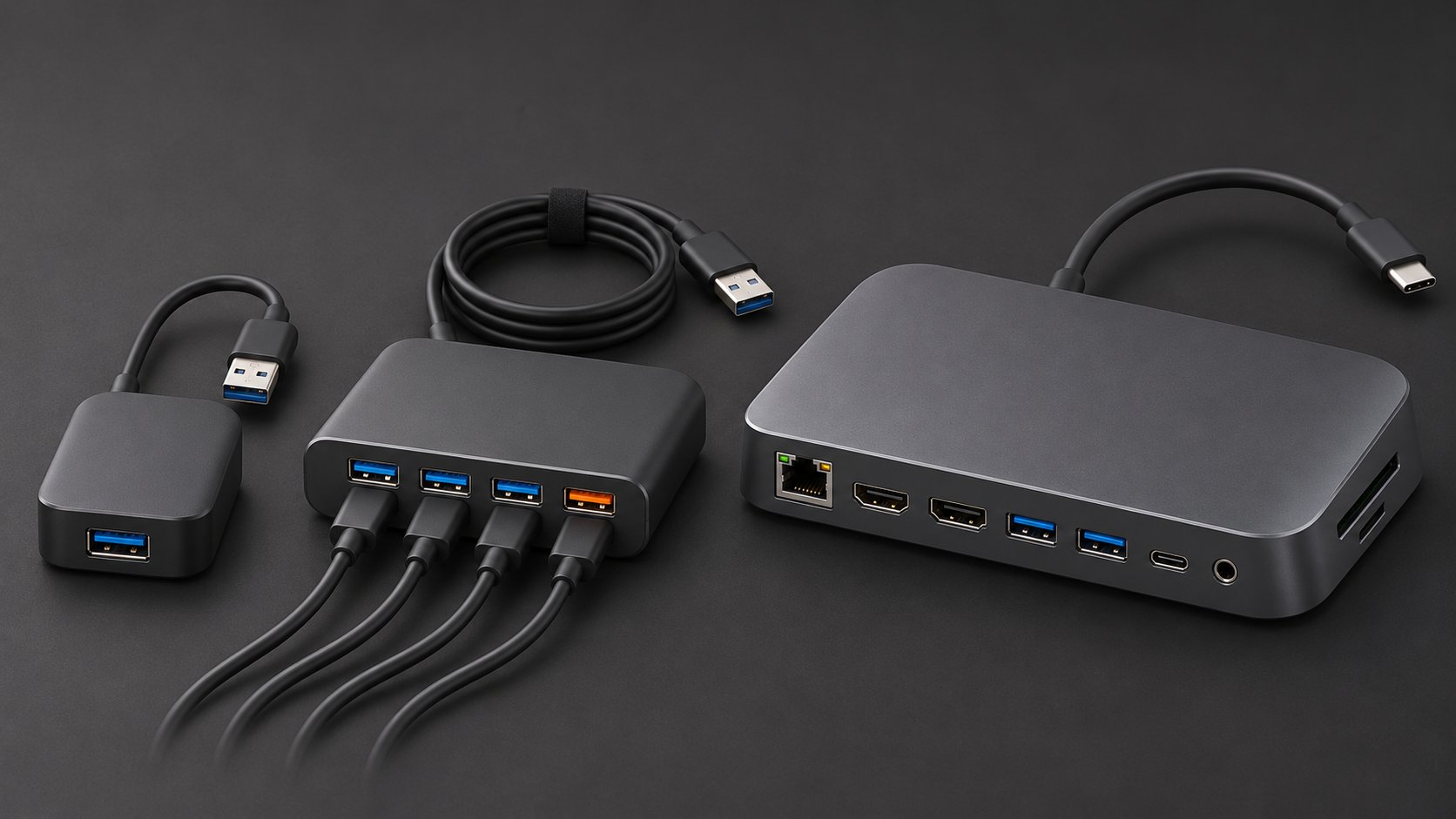
Three Types of USB Hubs and Which One You Need
Those three hub categories aren't just marketing labels — they reflect fundamentally different engineering priorities. Picking the wrong type doesn't just waste money; it can leave a critical vehicle function like Sentry Mode completely non-functional or your phone crawling through a charge cycle at a fraction of its potential speed. The distinction matters more than most product pages let on, and it starts with understanding what each category is actually built to do.
Sentry Mode and Dashcam Hubs
Some hubs exist for one purpose: giving your vehicle a reliable data connection to a USB drive that continuously writes video footage. These typically mount inside the glovebox, plugging directly into the Model Y USB port dedicated to Sentry Mode and Dashcam recording. Their design prioritizes sustained data throughput — the ability to write footage from up to six cameras simultaneously without dropped frames or corrupted files.
What makes these different from a generic hub? They're engineered around write stability, not charging wattage. A Sentry Mode hub might only offer one or two ports, and those ports are optimized for flash drives or SSDs rather than smartphones. Some models include a built-in SSD slot, eliminating the need for an external thumb drive altogether. Tesla's own documentation notes that the glovebox port is the recommended location for Dashcam recording because it "increases security and minimizes power consumption." A data-focused hub in this location respects that design intent.
- Primary function: Continuous data transfer for video recording
- Typical mounting location: Glovebox, near the factory USB-A port
- Port count: Usually 1-2 ports, sometimes with an integrated SSD enclosure
- Charging capability: Minimal or absent — not the point of this hub type
- Best for: Owners who want to expand or upgrade Sentry Mode storage without sacrificing recording reliability
One important caveat worth noting: Tesla's owner's manual for the Model 3 — which shares its USB architecture with the Model Y — explicitly warns against connecting multiple devices using a USB hub, stating it "can prevent connected devices from charging or from being recognized by Media Player, Sentry Mode, Dashcam, etc." This doesn't mean every hub fails. It means that cheap, unverified hubs — especially ones that split a single data connection across too many ports — carry real risk. Data-focused hubs designed specifically for Tesla vehicles account for this limitation in their chipset and power management design.
Charging-Only Hubs
On the opposite end of the spectrum, charging-only hubs exist purely to multiply the number of devices you can power simultaneously. These plug into a console Model Y USB port and fan out into three, four, or even five USB-C or USB-A charging connections. They're the hub equivalent of a power strip for your car's center console.
You'll notice these hubs advertise their combined wattage prominently — 36W, 48W, sometimes higher. That total wattage is the headline feature because fast-charging is the entire selling point. Many support Power Delivery (PD) or Quick Charge (QC) protocols on at least one port, allowing modern smartphones to charge at their maximum supported rate. The remaining ports often deliver lower wattage, suitable for tablets, earbuds, smartwatches, or older devices.
- Primary function: Expanding charging capacity for multiple devices
- Typical mounting location: Center console, replacing or extending the front USB-C port
- Port count: Usually 3-5 ports, mixing USB-C and USB-A
- Data capability: None or extremely limited — not designed for Sentry Mode or media playback
- Best for: Families, rideshare drivers, or anyone whose primary frustration is running out of places to charge devices
The trap here is subtle. A charging-only hub looks like it should do everything — it has multiple ports, it plugs into the same connector type, and the product listing might never explicitly say "no data support." But plug a Dashcam drive into one of these ports and you'll likely get nothing. No recording, no error message — just silence. The hub simply doesn't pass data through, and the vehicle won't recognize the drive. This is the single most common mismatch buyers make.
Multi-Function Hubs
Multi-function hubs attempt to bridge both worlds. They combine dedicated data ports alongside charging ports within a single unit, allowing you to run Sentry Mode on one connection while charging a phone on another. Think of them as the Swiss Army knife of the usb hub for Tesla Model Y market — versatile, but only if the individual tools are well-executed.
A well-designed multi-function hub clearly labels which ports handle data and which handle charging. Some even physically separate the two — one cable routes to the glovebox USB-A port for data, while another taps the console USB-C port for charging power. Others use internal chipsets that manage both functions through a single upstream connection, splitting bandwidth and power intelligently.
- Primary function: Simultaneous data transfer and device charging from one hub
- Typical mounting location: Varies — some span console and glovebox, others consolidate in the console
- Port count: Usually 3-6 ports, with clearly designated data vs. charging roles
- Data capability: At least one port supports Sentry Mode or media drive connectivity
- Best for: Owners who want a single accessory to handle all USB expansion needs without managing separate hubs in different locations
The trade-off? Complexity. Multi-function hubs cost more, require more careful installation, and introduce more potential failure points. If the data chipset underperforms, your Sentry Mode footage suffers. If the power management splits wattage poorly, your phone charges slower than expected. These hubs demand the most scrutiny before purchase — and they reward owners who verify specs carefully.
Identify your primary need — data transfer, device charging, or both — before you ever compare products. Buying the wrong hub type is one of the most common and entirely preventable mistakes Model Y owners make.
Knowing which category fits your situation is the first filter. The second — and arguably more consequential — filter is evaluating the specific features within that category: port count, power output behavior under load, physical fitment, and whether the hub will still work reliably after Tesla's next software update. Those evaluation criteria deserve their own checklist.
Essential Features to Evaluate Before Buying a USB Hub
A checklist sounds simple — until you realize how many seemingly minor specs can derail the entire experience. The difference between a hub that quietly does its job for years and one that frustrates you within a week often comes down to details buried in the fine print. Do Teslas have USB ports powerful enough to support every hub on the market? Not necessarily. The vehicle's own electrical design sets hard limits, and the hub you choose needs to work within them.
Port Count and Power Output
Start with an honest count of the devices you actually connect on a typical drive. Two phones, a tablet for the kids, maybe a controller for Tesla Theater — that's four devices before you even consider a Sentry Mode drive. Match that number against the hub's port count, and you'll know immediately whether a three-port hub cuts it or whether you need five or more.
But port count alone is only half the equation. Total wattage — and how that wattage behaves under load — determines whether your devices actually charge at useful speeds. Here's the critical nuance most product listings obscure: the advertised wattage is almost always the total shared across all ports, not the per-port output. A hub claiming 48W with four ports doesn't deliver 48W to each device. It splits that power budget across every connected device simultaneously, meaning each port's output drops as you add more gadgets.
Imagine plugging in a single phone — it might pull a full 27W through Power Delivery. Add a second phone, and each might get 15-18W. Add a third device, and you could be looking at 10W or less per port. That's still charging, but it's nowhere near fast-charging. As UGREEN's multi-port wattage guide explains, total wattage functions like a shared capacity limit — the more devices drawing power, the less each one receives.
For the best experience, look for hubs that specify PD (Power Delivery) or QC (Quick Charge) protocol support on at least one dedicated port. A Model Y USB-C port already supports PD 3.0 at up to 27W natively, so any hub tapping that port should pass through PD capability to at least one downstream connection. Without protocol support, your phone defaults to basic 5V/1A trickle charging regardless of how much total wattage the hub advertises.
Design and Fitment Considerations
Specs matter, but so does physical reality. A hub that technically works but blocks your wireless charging pad or jams the center console lid shut isn't a solution — it's a new problem. Design and fitment deserve as much scrutiny as electrical specs.
Two main form factors dominate the market: flush-mount and protruding. Flush-mount hubs sit nearly level with the console surface, blending into the Model Y's interior aesthetic. They tend to feel more OEM and less aftermarket. Protruding hubs stick up or out from the port area, sometimes adding bulk that interferes with the console's sliding cover, cup holder access, or the armrest position. Before purchasing, check whether the hub's physical dimensions allow normal console operation.
Cable management is another area where cheap hubs reveal themselves. Retractable cables or short, integrated pigtails keep the console area clean. Long, loose cables dangling from a hub create visual clutter and can snag on items stored in the console compartment. Some higher-end hubs route their cables internally so nothing is visible at all once installed.
LED indicators are a double-edged feature. A small status light confirming the hub is active and transferring data can be reassuring. But an overly bright LED in the center console becomes a glaring distraction during nighttime driving. Look for hubs with dim, muted indicators — or ones that let you disable the light entirely.
Perhaps the most overlooked fitment issue: wireless charging pad interference. The Model Y integrates Qi wireless chargers delivering up to 15W directly into the front console. Some hubs mount in positions that physically cover part of the wireless pad, or their cables cross over it. Others generate enough electromagnetic interference to disrupt Qi charging even without direct contact. If wireless charging matters to you — and for many owners it's the primary way to YCharge their phones on every drive — confirm the hub doesn't compromise that functionality before you buy.
Compatibility and Longevity Factors
Even a perfectly spec'd, beautifully designed hub can stop working after a software update. Tesla pushes over-the-air updates regularly, and these updates occasionally change how the vehicle's USB controllers interact with peripherals. Some owners have reported that firmware changes rendered previously functional USB devices unrecognizable — an issue that sometimes takes months to resolve through subsequent patches.
This isn't a reason to avoid hubs altogether. It's a reason to choose brands that actively monitor Tesla software releases and update their products or publish compatibility advisories when something changes. A hub from a no-name manufacturer with no online presence and no firmware update history is a gamble. A hub from a brand that maintains a Tesla-specific product line and communicates with its customer base about update compatibility is a much safer long-term investment.
Also consider construction quality. A hub that lives in a vehicle interior endures temperature extremes — from freezing winter mornings to summer heat-soaked cabins. Cheap plastics can warp, solder joints can crack, and USB connectors can loosen over time. Metal housings or high-grade polycarbonate construction adds durability where it counts. If a usb hub for Tesla Model 3 or Model Y claims to work identically across both vehicles, verify that the fitment dimensions actually match your specific car, since even shared-platform models can differ in console geometry between production years.
With all of these criteria in play, here's a prioritized checklist you can reference before placing any order:
- Vehicle generation compatibility — Confirm the hub is designed for your specific Model Y build (pre-refresh or Juniper) before evaluating any other feature.
- Hub type alignment — Match the hub category (data, charging, or multi-function) to your primary use case identified earlier.
- Total wattage and per-port power behavior — Check what each port delivers when all ports are occupied simultaneously, not just the headline number.
- PD / QC protocol support — Verify that at least one port supports the fast-charging protocol your phone requires.
- Data transfer verification — If Sentry Mode support matters, confirm the hub explicitly lists data transfer capability on at least one port.
- Physical fitment and console clearance — Ensure the hub doesn't block the wireless charging pad, console lid, or storage access.
- Cable management quality — Prefer retractable or internally routed cables over loose external wiring.
- LED brightness and control — Look for dim or disableable indicator lights to avoid nighttime glare.
- Brand update track record — Prioritize brands that publish Tesla software compatibility notes or firmware updates.
- Build material and thermal tolerance — Choose hubs with metal or high-grade polymer housings rated for automotive temperature ranges.
This checklist works regardless of which brand or specific product catches your eye. It's designed to filter out the hubs that look great in a product photo but fall apart in practice — and to surface the ones built for the realities of daily life inside a Model Y. What it doesn't yet address is whether a hub that passes all ten criteria actually fits your specific vehicle generation, which is where the compatibility landscape between pre-refresh and Juniper models gets genuinely complicated.
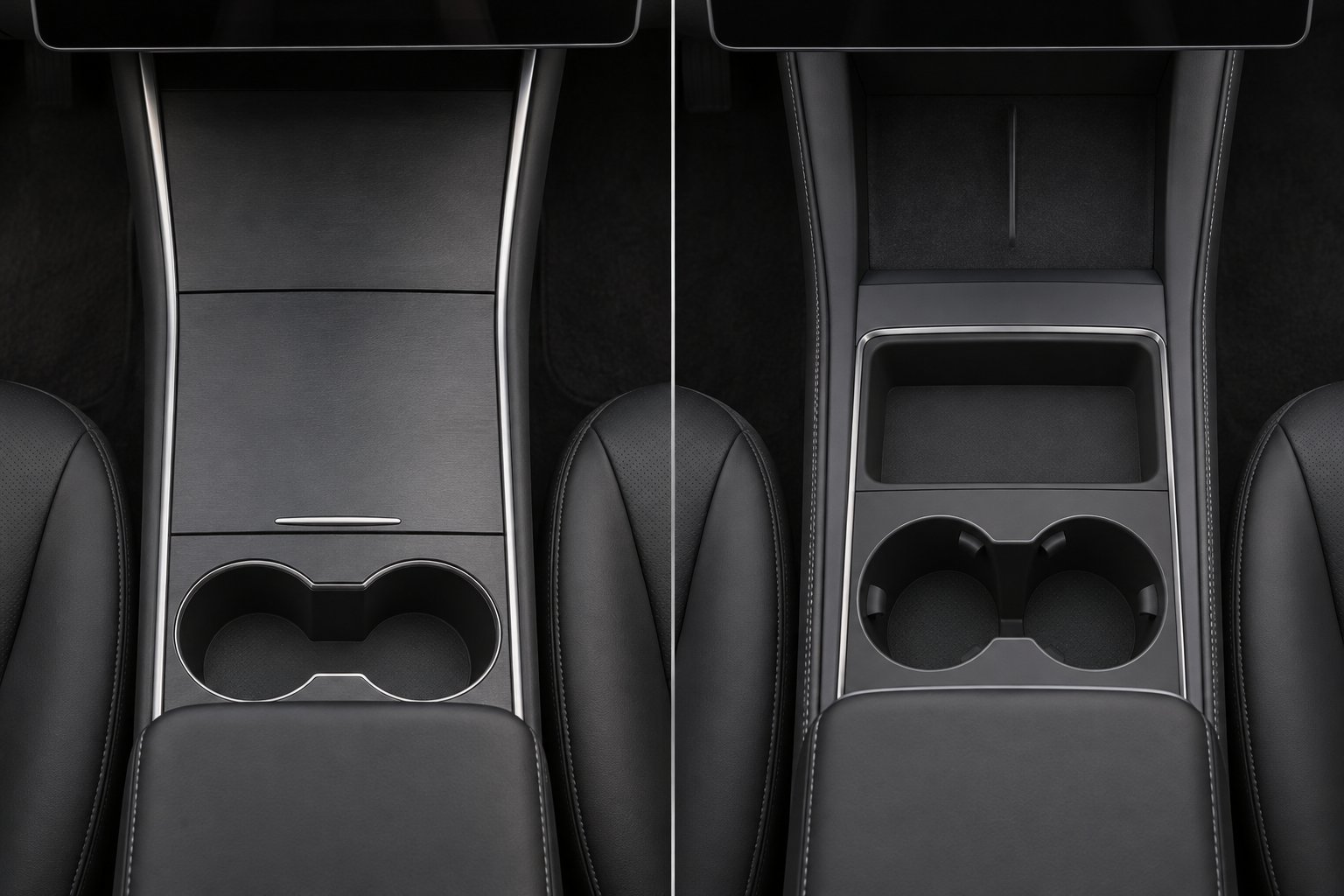
Model Y USB Hub Compatibility by Vehicle Generation
Here's where the rubber meets the road — and where the most expensive mistakes happen. You've identified your use case, you know whether you need data transfer or charging or both, and you've got a checklist of features to evaluate. But none of that matters if the hub you order doesn't physically fit your car. Does Tesla have USB ports in the same locations across every Model Y ever made? No. And that single fact trips up more buyers than any spec-sheet misunderstanding ever could.
The Model Y has existed in two fundamentally different interior configurations, and the aftermarket accessory world hasn't done a great job of making that distinction clear. Product listings often say "fits Model Y" without specifying which Model Y. That vagueness is where returns, frustration, and wasted money pile up.
Pre-Refresh Model Y Hub Compatibility
The original Model Y rolled off the production line starting in early 2020 and continued through most of 2025 with incremental updates but a largely consistent interior design. If you own a Model Y from this era, you're working with the center console layout most owners — and most accessory manufacturers — know well.
The pre-refresh console features a sliding cover that reveals a storage compartment beneath. Inside that compartment, you'll find the front USB-C port used for device charging and media. The glovebox houses a USB-A port pre-loaded with a Sentry Mode flash drive. Two more USB-C ports sit behind the center console for rear passengers. This arrangement stayed remarkably stable across five years of production, which gave the aftermarket ecosystem plenty of time to develop, test, and refine hub options.
The result? If you drive a pre-refresh Model Y, you have the broadest selection of Tesla Model Y USB hub options available. Flush-mount console hubs, glovebox data hubs, multi-function expansion docks — nearly every category offers multiple well-reviewed products engineered specifically for this console geometry. Many of the most popular hubs on the market today were originally designed around this generation's dimensions and port placement.
That abundance is a double-edged sword, though. Because so many products exist for this generation, quality varies dramatically. Some hubs fit perfectly and perform reliably for years. Others use generic dimensions that leave gaps, wobble in the console opening, or block the sliding cover from closing properly. Even within the pre-refresh generation, minor production variations in console tolerances mean that a hub fitting flawlessly in a 2021 Model Y might sit slightly off in a 2024 unit. Always check reviews from owners with your specific production year when possible.
Refreshed Juniper Model Y Hub Compatibility
Everything changed with the 2025/2026 Juniper refresh. Imagine taking the console layout you've memorized and redesigning it from scratch — because that's essentially what Tesla did. The Juniper Model Y introduced a completely reworked center console with updated storage architecture, repositioned port locations, and a new integrated 8-inch rear passenger screen that sits where the old rear USB-C ports and air vents used to be.
The front console USB-C port — the one most charging hubs plug into — sits in a different position relative to the console walls and storage cavity. The physical dimensions of the console opening itself changed. Port spacing, depth, and angle of insertion can all differ enough that a hub molded for the pre-refresh console simply won't seat correctly in the Juniper. It might partially fit, creating a false sense of success, only to disconnect under vibration during driving or block adjacent features you didn't notice during a stationary test.
The Tesla 4-in-1 USB-C Hub — Tesla's own first-party accessory priced at $65 — was designed specifically for the refreshed Model 3 Highland (2024+) and Model Y Juniper (2025+). This is a telling detail: even Tesla recognized that the new interior layout required a purpose-built hub rather than a universal one. If the manufacturer of the vehicle itself makes generation-specific accessories, it's a clear signal that cross-generation compatibility shouldn't be assumed from any brand.
For Juniper owners, the aftermarket landscape is still maturing. Fewer third-party options have been tested and verified for this generation compared to the pre-refresh model, simply because the vehicle hasn't been on the road as long. New products are emerging steadily, but the pool of owner-verified, long-term-tested hubs remains smaller. This means Juniper owners need to exercise extra caution — relying on verified fitment photos, reading reviews from confirmed Juniper owners specifically, and checking whether the manufacturer explicitly lists Juniper compatibility rather than a generic "fits Model Y" claim.
| Feature | Pre-Refresh Model Y (2020-2025) | Juniper Refresh Model Y (2025/2026+) |
|---|---|---|
| Console design type | Original layout with sliding cover and open storage well | Redesigned console with updated storage architecture and port placement |
| Native port configuration | 1x USB-C (front console), 2x USB-C (rear), 1x USB-A (glovebox) | USB-C ports repositioned; verify exact count and location against your specific build |
| Hub mounting — console | Widest selection; flush-mount and protruding options well-established | Growing but limited selection; confirm Juniper-specific fitment before purchasing |
| Hub mounting — glovebox | Established options designed around original glovebox port position | Verify glovebox port location and clearance; may differ from pre-refresh layout |
| Key fitment notes | Minor production tolerances vary by year; check reviews from your build year | Do not assume pre-refresh hubs will fit; Tesla's own hub is generation-specific |
Purchasing a Tesla USB C hub without confirming your vehicle generation is one of the most frequent buyer errors — and one of the most easily prevented. Always verify whether a hub is designed for the pre-refresh or Juniper Model Y before placing an order.
There's one more dimension to this compatibility question that deserves attention. Even within the correct vehicle generation, not all hubs are created equal — and the gap between Tesla's own official hub and the broader aftermarket ecosystem involves real trade-offs in pricing, port variety, wattage, and Sentry Mode support. That comparison is worth laying out side by side.
Tesla Official Hub vs Third-Party USB Hub Alternatives
So you've confirmed your vehicle generation, identified your primary use case, and have a feature checklist in hand. The next fork in the road is one every Model Y owner faces: do you buy the hub Tesla sells, or do you venture into the aftermarket? It's not a straightforward answer. Each path comes with genuine advantages — and trade-offs that aren't always obvious from a product page.
What Tesla's Official Hub Offers
Tesla quietly released its own 4-in-1 USB-C Hub designed for the refreshed Model 3 Highland (2024+) and Model Y Juniper (2025+). Priced at $65 USD, it does exactly what the name suggests — converts a single USB-C port in the center console into four separate USB-C ports, letting multiple passengers charge devices simultaneously.
The standout advantage? Guaranteed fitment. Because it's a first-party accessory, the hub is custom-molded to match the contours of the updated center console. No wobble, no clearance issues, no guessing about whether it blocks the wireless charging pad or interferes with the console lid. It slides in, sits flush, and looks like it came with the car. For owners who value a clean, factory-integrated aesthetic above all else, that seamless design language is hard to replicate with aftermarket options.
Compatibility concerns vanish, too. You'll never wonder whether a Tesla software update will break a Tesla-branded accessory — or at least, if it does, the fix is Tesla's problem to solve rather than a third-party manufacturer's. That peace of mind carries real value, especially for owners who'd rather install something once and forget about it.
The limitations, however, are worth noting. All four output ports are USB-C, which means owners who still rely on USB-A accessories or older flash drives will need an additional adapter. The hub is explicitly a charging expansion tool — Tesla's product description focuses on powering "multiple devices at one time" without mentioning data transfer support for Sentry Mode or Dashcam recording. And at $65, it carries what many in the Tesla community call the "Tesla tax." As Drive Tesla Canada noted, functionally similar third-party USB hubs are available for a fraction of that price — sometimes under $20. The premium buys you the OEM fit and brand assurance, not additional functionality.
There's also the generation restriction. This hub only fits the newest interior layouts. If you own a pre-refresh Model Y (2020-2024), Tesla doesn't currently offer an official hub option for your console design. You're headed to the aftermarket by default.
Why Owners Explore Third-Party Alternatives
The aftermarket ecosystem fills every gap Tesla's official hub leaves open — and then some. Third-party hubs come in a wider variety of port configurations, mounting locations, wattage ratings, and price points. Where Tesla offers a single product at a single price, the aftermarket offers dozens of options ranging from $15 budget chargers to $80+ multi-function expansion docks with integrated SSD enclosures.
Variety is the headline benefit. Need a mix of USB-C and USB-A ports? Aftermarket hubs offer that. Want a glovebox-mounted hub dedicated to Sentry Mode data transfer? Multiple brands build exactly that. Looking for a console hub with 36W or higher combined wattage and dedicated PD fast-charging on the primary port? You'll find several options. Some brands, like CUTIM, organize their hub collections by mounting location, port function, and vehicle generation — letting you filter directly to the products that match your specific Model Y setup rather than scrolling through generic listings. Others, like JOWUA, offer specialized products such as dashcam hubs with integrated SSD slots or multi-port hub bars with LED indicators.
Pricing flexibility is another draw. A basic four-port charging hub from a reputable aftermarket brand can cost one-third of Tesla's official offering while delivering comparable or even superior wattage. The savings compound if you need multiple hubs — one for the console and one for the glovebox, for example — since you're not paying the OEM premium twice.
The trade-off is responsibility. With aftermarket products, you own the fitment verification, the software compatibility risk, and the quality assessment. No Tesla service center will troubleshoot a third-party hub that stops working after an update. You're relying on the manufacturer's commitment to Tesla-specific testing, their responsiveness to software changes, and the accuracy of their compatibility claims. That's manageable with established brands that maintain dedicated Tesla product lines — and risky with generic, unbranded hubs from marketplace sellers with no track record.
One reminder worth repeating here: USB hubs are not storage drives. A hub expands your available ports, but whether those expanded ports support data transfer, charging, or both depends entirely on the hub's internal design. Always verify data support separately from charging capability, regardless of whether you're buying from Tesla or the aftermarket.
| Criteria | Tesla 4-in-1 USB-C Hub | Third-Party Aftermarket Hubs |
|---|---|---|
| Price range | $65 USD (fixed) | $15 - $80+ depending on features |
| Port count | 4x USB-C | Varies: 2-6 ports, often mixed USB-C and USB-A |
| Max wattage | Not specified by Tesla beyond charging use | Ranges from 18W to 48W+; some with dedicated PD ports |
| Design integration | Custom-molded OEM fit; flush with console | Varies: flush-mount to protruding; quality depends on brand |
| Sentry Mode data support | Not explicitly confirmed for data transfer | Available on data-focused and multi-function hubs; verify per product |
| Generation compatibility | Model Y 2025+ (Juniper) only | Options available for both pre-refresh and Juniper; must verify per product |
| Mounting options | Center console only | Console, glovebox, or both depending on hub type |
| Software update assurance | High — first-party accessory | Varies by brand; established Tesla-focused brands track updates |
Neither path is universally better. Tesla's hub wins on simplicity and guaranteed compatibility for Juniper owners who just need more charging ports. The aftermarket wins on flexibility, price, port variety, and specialized functions like Sentry Mode data support. Many owners end up using both — Tesla's hub in the console for passenger charging and a third-party data hub in the glovebox for Dashcam recording.
The real question isn't which ecosystem to shop from — it's which specific products within each hold up under scrutiny. Laying the leading options side by side, with specs mapped to the use cases and evaluation criteria covered earlier, turns that question into something you can answer in minutes rather than hours of tab-switching.
Top USB Hub Options for Model Y Compared
Specs on a product page tell one story. Specs lined up next to the competition tell a completely different one. Comparing USB hub options for the Model Y in isolation — jumping from one browser tab to the next, trying to remember which hub had four ports and which one supported PD — is how buyers end up with the wrong product in their cart. A side-by-side breakdown eliminates that guesswork. Every hub below is mapped against the evaluation criteria and use cases covered in earlier sections, so you can match features to your actual needs in a single glance.
Top USB Hub Options Side by Side
This table focuses on hubs commonly discussed across Tesla owner communities and accessory retailers. It spans the Tesla Model Y USB-C ports ecosystem — from dedicated console chargers to glovebox data hubs — so you can compare across categories rather than within a single narrow product type. Keep in mind that pricing and exact specifications can shift as manufacturers update their product lines, so confirm details directly with the seller at time of purchase.
| Brand / Product | Approx. Price | Port Configuration | Total Wattage | Compatible Generations | Sentry Mode Data Support | Notable Design Features |
|---|---|---|---|---|---|---|
| CUTIM Console & Glovebox Hubs | $19 - $45 | Varies by model: 4-port USB-C console hub or glovebox data hub with USB-A + USB-C | Up to 48W (console); varies by model | Pre-refresh and Juniper options available (filtered by generation on product page) | Yes — on glovebox data hub models; verify per specific SKU | Organized by mounting location and vehicle generation; flush-mount console options; dedicated Sentry Mode glovebox variants |
| JOWUA USB Hub Bar | $35 - $55 | 4-port USB-C with integrated SSD slot on select models | Up to 48W | Pre-refresh; Juniper versions emerging | Yes — on models with SSD enclosure or dedicated data port | LED power indicators; integrated SSD slot on premium models; aluminum housing |
| Tesla 4-in-1 USB-C Hub (TSL04) | $65 | 4x USB-C (all identical output) | Up to 60W per port (at 65W input); 36W per port (at 45W input) | Juniper Model Y (2025+) and refreshed Model 3 (2024+) only | Not explicitly confirmed by Tesla for data transfer | OEM wedge-shaped design; metallic top finish with silicone base; snap-fit console mounting; supports PD 3.0, QC, PPS protocols |
| EVAAM USB Hub | $20 - $35 | Typically 4-port: mix of USB-C and USB-A | Up to 36W | Primarily pre-refresh; check listings for Juniper compatibility | Limited — primarily a charging-focused hub | Compact form factor; budget-friendly; basic LED indicator |
| T Sportline USB Hub | $30 - $50 | 4-port USB-C or mixed USB-C/USB-A depending on model | Up to 42W | Pre-refresh models; Juniper-specific versions TBD | Varies by model — confirm before purchasing | Premium build quality; designed to match Tesla interior aesthetics; retractable cable on select versions |
A few things jump out immediately. The Tesla TSL04 hub delivers the highest per-port wattage ceiling — up to 60W on each of its four USB-C ports when the vehicle provides a 65W input, dropping to 36W per port at 45W input. ChargerLAB's teardown confirmed that all four ports support identical PD 3.0, QC, and PPS protocol profiles, meaning any port can fast-charge any compatible device without hunting for the "right" one. That's a genuine engineering advantage — but it only applies to Juniper and refreshed Model 3 owners, and Tesla hasn't confirmed it supports Sentry Mode data recording.
On the aftermarket side, brands like CUTIM stand out for a practical reason that matters before you even compare wattage numbers: their collection is organized by mounting location (console vs. glovebox), port function (charging vs. data), and vehicle generation. That filtering structure directly mirrors the decision framework you've been building through this article — identify your generation, pick your hub type, then evaluate features. It sidesteps the frustrating experience of scrolling through generic product listings that say "fits Model Y" without specifying which one.
JOWUA's integrated SSD slot is worth noting for owners who want Sentry Mode recording and device charging from a single unit without a separate glovebox hub. EVAAM offers a solid budget entry point for owners who purely need extra charging ports and aren't concerned with data functions. T Sportline tends to appeal to owners who prioritize premium build materials and visual cohesion with Tesla's interior design language.
How to Read This Comparison
The table above isn't a ranking — it's a filter. Your use case, identified earlier in this guide, determines which columns matter most to you. Here's how to approach it depending on what you actually need:
- Sentry Mode-focused buyers: Look at the "Sentry Mode Data Support" column first. If it says "No" or "Not confirmed," that hub won't record footage regardless of how many ports it offers or how impressive its wattage numbers look. Then check the "Compatible Generations" column to confirm fitment.
- Charging-focused buyers: Start with "Total Wattage" and "Port Configuration." Remember the power-splitting behavior discussed earlier — a hub's advertised wattage is shared across occupied ports, so a 48W hub with four devices connected delivers roughly 12W each. If fast-charging a single phone is your priority, look for hubs with at least one dedicated PD port that maintains higher output even when other ports are active.
- Multi-function buyers: You need to check both the data and wattage columns. A hub that scores well on one but fails the other still leaves you short. Multi-function buyers often find the best solution is pairing two specialized hubs — a data hub in the glovebox and a charging hub in the console — rather than compromising on a single unit that does both tasks at a mediocre level.
Also pay attention to the "Notable Design Features" column if you've already identified fitment as a concern. A hub with retractable cables won't clutter your console. A flush-mount design won't block the Tesla Y charge port area or wireless pad. An aluminum housing dissipates heat better during long charging sessions in summer. These details don't show up in headline specs, but they determine whether you're still happy with the hub six months after installation.
One more thing worth repeating — since the Tesla Model 3 USB port layout shares the same underlying USB architecture as the Model Y, many hubs in this comparison are marketed for both vehicles. That cross-compatibility is generally accurate at the electrical level, but physical fitment can still differ between the two models. If a listing says "fits Model 3/Y," verify that the specific console dimensions match your car, not just the port type.
Always cross-reference hub compatibility with your specific Model Y generation before ordering. A hub verified for the pre-refresh console will not reliably fit the Juniper interior — and no amount of positive reviews from other owners changes the physical dimensions of your car.
Armed with a comparison that maps directly to your use case and vehicle generation, you're in a strong position to make a confident purchase. But even the best-matched hub can underperform or cause headaches if you fall into a handful of avoidable traps — mistakes that show up after the box is opened and the return window is closing.
Common Mistakes to Avoid When Choosing a USB Hub
You've done the research. You know your vehicle generation, your use case, and which specs to prioritize. But even well-informed buyers stumble at the finish line — not because they chose the wrong brand, but because they overlooked a detail that seemed minor at the time and turned into a real headache after installation. These are the mistakes that generate one-star reviews, unnecessary returns, and the quiet frustration of a hub that technically "works" but doesn't actually solve the problem it was bought to fix.
Here's a scannable checklist of the most common — and most preventable — errors to avoid before you place any order:
- Buying a hub that doesn't match your vehicle generation
- Misunderstanding how power splits across multiple ports
- Confusing charging capability with data transfer support
- Ignoring phantom power draw and vampire drain implications
Each one deserves a closer look, because each one costs real money to fix after the fact.
Buying the Wrong Hub for Your Vehicle Generation
This is the single most frequent error — and the most avoidable. The pre-refresh Model Y (2020-2025) and the Juniper refresh (2025/2026+) use entirely different center console architectures. The physical dimensions of the console cavity, the positioning of Model Y USB ports, the depth and angle of the port openings — all of it changed. A hub molded for the pre-refresh console will not seat properly in a Juniper interior. It might partially insert, giving you false confidence during a stationary test, then disconnect from vibration the first time you hit a rough stretch of road.
The reverse is equally true. Tesla's own 4-in-1 USB-C Hub was designed exclusively for the Juniper and refreshed Model 3 — Tesla's service manual confirms the center console USB hub assembly uses specific clip attachments and electrical harness connectors unique to each generation. If a product listing says "fits Model Y" without specifying which generation, treat that ambiguity as a red flag, not a sign of universal compatibility. Always confirm before checkout — not after unboxing.
Overlooking Power Delivery Specs
Imagine buying a four-port hub advertised at 48W, plugging in two phones and a tablet, and watching all three charge at a crawl. Frustrating? Absolutely. Surprising? It shouldn't be — because that 48W figure is almost certainly the total shared across every port, not the per-port output.
This is how multi-port power distribution actually works: the charger has a fixed power ceiling, and every connected device carves out a slice of that budget. A 48W hub with one device connected might deliver a full 27W through PD. Add a second device, and each might get 18W. Add a third, and you're looking at roughly 12-15W per port — functional, but nowhere near fast-charging territory.
Some hubs use priority distribution, where the first port maintains higher wattage while secondary ports receive whatever's left over. Others use static distribution, splitting power evenly regardless of device needs. A few premium options use smart distribution, dynamically allocating wattage based on what each device requests. Knowing which model your hub uses is the difference between expecting fast-charging and actually getting it. Check the spec sheet for per-port output at full occupancy — if that number isn't listed, assume the worst-case split.
Ignoring the Data vs Charging Distinction
This mistake has been threaded throughout this entire guide for good reason — it's the error that causes the most confusion and the least obvious symptoms. You plug a USB drive into a charging-only hub expecting Sentry Mode to start recording. Nothing happens. No error message, no warning on the touchscreen, no indication that anything is wrong. Your car just silently stops recording footage, and you don't discover the gap until the one moment you actually need that footage.
The flip side is equally wasteful: buying a data-focused glovebox hub when all you needed was extra charging ports in the console. You've paid for data throughput capabilities you'll never use while your phone still charges at trickle speed because the hub wasn't engineered for power delivery.
Tesla's own owner's manual for the Model 3/Y USB hub architecture warns that connecting devices through a hub "can prevent connected devices from charging or from being recognized by Media Player, Sentry Mode, Dashcam, etc." That warning isn't about all hubs — it's about hubs that weren't designed to handle the specific function you're asking of them. Match the hub type to the job. Data for data. Charging for charging. If you need both, buy a multi-function hub that explicitly supports both — or pair two specialized hubs in separate locations.
Phantom Power and Vampire Drain Concerns
Here's a concern that doesn't surface until weeks after installation: is your hub quietly sipping power while the car sleeps? Phantom drain — where the battery loses a few percentage points overnight while the vehicle is parked — is a well-documented issue in the Tesla community. And USB accessories can contribute to it.
According to Tessie's phantom drain elimination guide, a Tesla should fall asleep within 7 to 10 minutes after driving or charging finishes. But USB ports and low-voltage outlets can consume energy even when no devices are actively connected. Tesla includes a specific setting — found under Charging > Keep Accessory Power On — that controls whether USB ports remain energized when the vehicle is idle. If this setting is enabled, a hub plugged into one of those ports may draw a small but continuous current, preventing the car from entering its lowest power state.
The practical impact varies. A simple passive hub with no active electronics draws negligible power. A hub with LED indicators, active chipsets for smart power distribution, or always-on data monitoring can draw enough to keep the vehicle's low-voltage system partially awake. Over days of parking — at an airport, during a vacation, or simply sitting in your garage — that trickle adds up.
To minimize the risk, consider these steps:
- Check for auto-shutoff: Some hubs include circuitry that powers down when the upstream USB port stops delivering current. This mirrors the vehicle's own sleep behavior and eliminates the hub as a drain source.
- Disable "Keep Accessory Power On": Found in Charging settings on the touchscreen, turning this off ensures the Tesla Model Y power outlet and USB ports deactivate when the vehicle sleeps.
- Unplug when parking long-term: If your hub doesn't have auto-shutoff and you're leaving the car parked for days, physically disconnecting the hub is the simplest guarantee against unnecessary drain.
- Monitor with a third-party app: Tools like Tessie can track whether your vehicle is actually reaching sleep state. If you install a new hub and notice the car staying awake longer than the expected 7-10 minute window, the hub is a likely culprit.
None of these mistakes are catastrophic on their own. But stacked together — wrong generation, misunderstood wattage, wrong hub type, and a phantom drain you don't notice for weeks — they turn what should be a $25 quality-of-life upgrade into a cycle of returns, replacements, and forum troubleshooting. The fix is simpler than the problem: verify your generation, match the hub to your use case, read the power specs under realistic conditions, and confirm the hub won't keep your car awake when you walk away. Do that, and the hub disappears into your daily routine exactly the way a good accessory should — quietly, reliably, and without a second thought.
Frequently Asked Questions About USB Hubs for Tesla Model Y
1. How many USB ports does the Tesla Model Y have?
The standard 5-seater Model Y includes four USB ports: one USB-C in the front center console rear compartment, two USB-C ports beneath the rear cabin vents, and one USB-A port inside the glovebox pre-loaded with a Sentry Mode flash drive. The 6-seater adds two more USB-C ports beneath the third-row cushions for a total of six. Because the glovebox port is dedicated to Dashcam recording, front-seat occupants effectively have just one wired charging port plus the wireless pad — which is why many owners turn to a USB hub for extra connectivity.
2. Can I use a USB hub for Sentry Mode and Dashcam recording in my Model Y?
Yes, but only if the hub explicitly supports data transfer — not just charging. Tesla's own manual warns that connecting devices through a hub can prevent Sentry Mode and Dashcam recognition. Data-focused hubs designed specifically for Tesla vehicles use chipsets that maintain stable write throughput for continuous video recording. Charging-only hubs will not work for this purpose, even if they physically fit the glovebox port. Always verify that a hub lists data transfer capability before relying on it for Sentry Mode. Brands like CUTIM offer dedicated glovebox data hub models at cutimauto.com/collections/tesla-usb-hubs that you can compare by port function.
3. Do USB hubs cause vampire drain on a Tesla Model Y?
They can, depending on the hub's design. Hubs with active electronics, LED indicators, or always-on chipsets may draw a small but continuous current that prevents the vehicle from fully entering sleep mode. To minimize phantom drain, look for hubs with auto-shutoff circuitry, disable the 'Keep Accessory Power On' setting under Charging on the touchscreen, or simply unplug the hub during extended parking periods. Monitoring tools like Tessie can help confirm whether your car reaches sleep state within the normal 7-10 minute window after you park.
4. Will a pre-refresh Model Y USB hub fit the 2025/2026 Juniper refresh?
No. The Juniper refresh introduced a completely redesigned center console with different physical dimensions, port positioning, and mounting points. A hub molded for the 2020-2025 pre-refresh console will not seat properly in the Juniper interior and may disconnect during driving. Even Tesla's own 4-in-1 USB-C Hub is generation-specific, fitting only the Juniper Model Y and refreshed Model 3. Always confirm whether a hub is engineered for your exact vehicle generation before purchasing — listings that say 'fits Model Y' without specifying a generation should be treated with caution.
5. What is the difference between a charging USB hub and a data USB hub for Tesla?
A charging hub multiplies the number of ports available for powering devices like phones and tablets, prioritizing wattage output and fast-charge protocol support such as PD or QC. A data hub is engineered for sustained data throughput, primarily serving Sentry Mode and Dashcam recording via a connected USB drive. Charging hubs typically offer no data transfer capability, so plugging a Dashcam drive into one produces no recording. Multi-function hubs combine both roles but cost more and require careful spec verification. Identifying whether you need data, charging, or both is the essential first step before comparing any products.