

Tesla Screen Black or Frozen? Here Is What to Do
Imagine you're pulling out of your driveway on a cold morning and the center display suddenly freezes. The map stops moving. The climate controls ignore your taps, and the music cuts out mid-song. A few seconds later, the whole screen goes black. In most cars, a dead radio is just annoying. When your Tesla screen goes black, it can feel like the car has stopped responding to you altogether.
Why the Tesla Touchscreen Is a Single Point of Control
Tesla moved most of the buttons and knobs you'd find in a traditional car onto one display. The Tesla owner's manual lists cabin heating and air conditioning, headlights, media, navigation, and vehicle preferences as features you control from the touchscreen. On Model 3 and Model Y, you even open the glovebox from the screen.
All of this runs on the Media Control Unit (MCU), the infotainment computer with its own processor, storage, and memory. When the MCU hangs, nearly every non-driving control hangs with it. That is why a frozen screen worries owners so much. The MCU is only one of two main computers in a modern Tesla, though. A separate FSD computer handles Autopilot and the vehicle's safety features.
A frozen touchscreen does not mean your car is unsafe to control: acceleration, braking, and steering do not depend on the infotainment screen, although you lose the speed display, on-screen warnings, and backup camera until it comes back.
How This Guide Is Organized
If you've searched for how to reboot a Tesla, you've probably found a list of button combinations with no advice on which one fits your problem. This guide starts from the symptom instead. You'll match what your screen is doing (black, frozen, flickering, or refusing to turn on) to the fix most likely to work. The fixes fall into three tiers:
- Soft reset: a quick touchscreen restart using the two steering wheel scroll buttons. Try this first.
- Hard reset: a deeper restart or full power cycle for problems a soft reset doesn't clear.
- Factory reset: a complete wipe of your personal data, meant only for specific situations.
Knowing how to restart your Tesla screen is only part of the job. You'll also see what Tesla says about restarting while the car is moving, which functions keep working during a reboot, and which habits help stop the problem from coming back. Start by working out what kind of failure you have, because a black screen and a frozen screen often have different causes.

Diagnose Your Screen Issue Before You Reboot Your Tesla
Is your screen dark, stuck, or just acting strange? The difference matters. Each behavior points to a different cause, and the cause tells you how far up the reset ladder you need to go. Watch the screen for a few seconds before you press anything.
Five Common Screen Symptoms and What They Mean
Use the table below as a quick reference. Find the row that matches what you see, then try the first action listed.
| Symptom | Likely Cause | Recommended First Action |
|---|---|---|
| Completely black screen (no backlight) while the car is on | Software crash in the MCU. On older Model S and Model X, a worn eMMC memory chip | Soft reset with both scroll buttons. If the screen stays dark, contact Tesla Service. |
| Frozen image that still registers some taps, or responds slowly | A stuck app or process, or storage filled with dashcam and Sentry Mode clips | Soft reset. If the screen comes back sluggish, power cycle from Controls > Safety > Power Off. |
| Frozen and completely unresponsive | Temporary software glitch or an interrupted update | Soft reset first, because the Power Off option needs a working screen. |
| Flickering or glitchy visuals | Overheating after hot parking or fast charging. Failing hardware if it persists | Let the cabin cool, then soft reset. Bubbling or discoloration on the display needs service. |
| Screen will not turn on at all | Weak low voltage battery or MCU hardware failure | Check the Tesla app for low voltage battery alerts, try one soft reset, then book service. |
Heat is a documented cause. In a 2022 recall, Tesla addressed about 130,000 vehicles whose main computer might not cool enough during fast charging. The screen could lag, restart, or go blank. Tesla fixed it with an over-the-air software update.
Hardware problems behave differently. If the screen keeps getting stuck on the Tesla logo, freezes again soon after every reset, or the backup camera takes ages to load, you're probably looking at a Tesla screen repair rather than a software fix. Looking up a hard reset for a Tesla Model 3 won't help much here, because no restart can fix a worn memory chip or a failing battery.
How Failed Software Updates Cause Screen Problems
Owners often overlook updates as a trigger. A pending, interrupted, or freshly installed update can make the screen act up for a while. When a freeze appears out of nowhere, check whether the car just installed new software or has an update waiting.
If an installation looks stuck, wait before you restart anything. Keep the car parked and don't drive it, because some functions, including safety systems and door or window operation, may be limited during installation. Tesla's update guidance says to restart the touchscreen only if more than three hours have passed since the update started and the app shows no completion notice. If the restart doesn't work, schedule service. Never disconnect vehicle power to force a stalled update to finish.
A failed installation can't be rolled back. The Model 3 manual advises waiting for the next update. If the car stays unresponsive, contact Tesla Service.
Almost every row in the table starts with the same move: the scroll button restart. It erases no data and takes about 30 seconds, so it's worth learning to do it correctly.
How to Soft Reset Your Tesla Screen in About 30 Seconds
When the map freezes or your taps stop registering, the fix is usually on the steering wheel. A soft reset restarts the touchscreen and nothing else. The Tesla service guide confirms that the scroll button method doesn't restart any other vehicle component and doesn't power the car off and on. Most advice on how to reset Tesla displays starts with this method because it is quick and erases nothing. Try it before anything else.
Step-by-Step Scroll Wheel Reboot
- Stop the car and shift into Park. Tesla says to restart the touchscreen only while stopped in Park, because the car status display, safety warnings, and backup camera disappear during the restart.
- Press and hold both scroll buttons on the steering wheel. Keep holding until the screen turns black, even if nothing seems to happen at first.
- Release the buttons. The Tesla logo appears after a few seconds.
- Wait about 30 seconds for the touchscreen to finish loading.
You don't need to press the brake pedal. The Model 3 owner's manual says pressing it while you hold the scroll buttons has no effect. The manual shows a different steering wheel for Model 3 cars built from about January 2024, but the method is the same on both: hold both scroll buttons.
Rebooting a Tesla screen this way clears temporary problems such as a stuck app, a laggy interface, or taps that don't register. Your driver profiles, saved destinations, Bluetooth pairings, and personal settings are still there afterward because a restart doesn't delete any data. You'll notice everything comes back where you left it, much like restarting a phone.
When to Use the Power Off Option Instead
Sometimes the screen comes back and still lags, or the car shows a vague alert you can't explain. In those cases a power cycle is the better tool. Tesla's guide to power cycling the vehicle recommends it when the car behaves unusually or displays a nondescript alert, and it lists this as the next step when the touchscreen still misbehaves a few minutes after a restart. The scroll button method restarts only the screen. Power Off shuts down the whole vehicle.
- Shift into Park.
- On the touchscreen, touch Controls > Safety > Power Off.
- Wait at least two minutes without touching anything. Don't open the doors, press the brake pedal, or touch the screen, because the car wakes back up if you press the brake or open the driver's door.
- After two minutes, press the brake pedal or open the door to wake the vehicle.
Some owners call this a Tesla hard reset, but it only works if the screen responds, since you have to tap the Power Off button. If the display is black or ignores every touch, you can't use this option. What you do next depends on which Tesla you drive.
How to Hard Reset Tesla Model 3, Y, S, and X Screens
What if the soft reset doesn't fix anything? The screen might stay black, or it might come back and freeze again a few minutes later. The whole car might feel sluggish. At that point most owners start searching for a hard reset, and the term causes confusion. Forum posts often use "hard reset" to mean a full vehicle power cycle. Find My Electric uses it only for disconnecting the low-voltage battery. You can do a power cycle yourself. Disconnecting the battery is a job for Tesla Service.
You'll also see a popular tip that says to hold both scroll buttons and the brake pedal at the same time. Tesla's current manual says the brake pedal has no effect during a touchscreen restart, so holding it won't give you a deeper reset.
Hard Reset Steps for Model 3 and Model Y
If you need to reboot a Tesla Model 3 or Model Y more deeply than a screen restart, power cycle the car. Shift into Park, touch Controls > Safety > Power Off, and wait at least two minutes without touching anything. If the screen is black, you can't reach that button. In that case, repeat the scroll button restart and give the screen a few minutes to come back. First, unplug everything from the USB ports and turn off Bluetooth on your phone. Corrupted files on a USB drive or a bad contact entry on a phone can stop a reboot from finishing.
Hard Reset Steps for Model S and Model X
Model S and Model X give you one more option. On cars with MCU1, the touchscreen and the instrument panel restart separately. The Tesla service guide says to shift into Park, then hold the top two steering wheel buttons (Voice Commands and Next) for 15 to 30 seconds to restart the instrument panel. On MCU2 cars, the scroll button restart reboots both screens at once.
| Model | Steps | Approximate Reboot Time |
|---|---|---|
| Model 3 | In Park, hold both scroll buttons until the screen turns black. If problems continue, go to Controls > Safety > Power Off, wait, then press the brake. | About 30 seconds for the screen. At least 2 minutes for a power cycle. |
| Model Y | Same as Model 3. | About 30 seconds for the screen. At least 2 minutes for a power cycle. |
| Model S | Hold both scroll buttons for the touchscreen. On MCU1 cars, hold Voice Commands and Next for 15 to 30 seconds to restart the instrument panel. For a deeper restart, use Power Off. | About 30 seconds per screen. At least 2 minutes for a power cycle. |
| Model X | Same as Model S. | About 30 seconds per screen. At least 2 minutes for a power cycle. |
If a power cycle doesn't help, don't disconnect the low-voltage battery yourself, because it can trigger new errors, damage components, or affect your warranty.
MCU1 vs MCU2 and Why Older Hardware Matters
If you drive an older Model S or Model X, the hardware may be the problem. MCU1 runs on an NVIDIA Tegra processor and stores its data on an 8GB eMMC flash chip. Logs, maps, and software updates all write to that chip, and flash memory wears out after enough writes. Tesla recalled Model S and Model X vehicles built before March 2018 to replace the 8GB eMMC, because the chip could fail from accumulated wear. Cars built on or after March 2018 don't use that chip.
A worn eMMC can cause these symptoms:
- The screen reboots on its own.
- Software crashes often.
- Resets help only for a short time.
No hard reset can repair worn memory. Ask Tesla Service whether your car already received the recall repair. If it did and the problems continue, Tesla sells a paid infotainment upgrade that replaces MCU1 with a newer computer.
Newer cars rarely have this kind of hardware wear. If a newer Tesla keeps misbehaving after every restart and power cycle, one software option remains, and it erases your personal data along with the problem.

Tesla Factory Reset
Restarting the screen works like rebooting your phone. A factory reset is closer to wiping the phone before you sell it, which is the same comparison MotorTrend uses. When people ask how to reset Tesla screen settings back to day one, this is the tool they mean. It clears your personal data and returns custom settings to factory defaults. It does not roll the car back to older software. Tesla's service manual files the procedure under User Data (Factory Reset), separate from its firmware reinstall procedures. Your car keeps the software version it already has.
Everything a Factory Reset Erases
Expect the car to forget everything that makes it yours:
- Saved addresses, including Home and Work, and your navigation history
- Bluetooth pairings and contacts imported from your phone
- Saved Wi-Fi networks and their passwords
- Driver profiles with seat, mirror, and steering wheel positions
- Logins for streaming music and video apps, plus saved favorites
- HomeLink garage door programming
- Custom vehicle settings, such as display, lighting, and climate preferences, which go back to defaults
Dashcam and Sentry Mode clips need their own plan. The car saves them to the USB drive plugged into it, not to its main computer. Before you start, copy any clips you want to keep onto a computer. Then decide whether the drive goes with the car. If you hand it over, the next driver gets your recordings too.
When a Factory Reset Is the Right Choice
Most screen problems never get this far. A factory reset makes sense in three situations:
- Selling or trading in the car. Tesla's ownership transfer steps tell sellers to factory reset before removing the car from their account. Don't count on a dealer to wipe it for you.
- Software problems that survive every restart. If soft resets and power cycles keep failing and the hardware checks out, clearing user data rules out a corrupted profile or setting as the cause.
- Tesla Service recommends it. A technician may suggest it during troubleshooting. If you bought a used Tesla that the previous owner never reset, Service can run a factory reset from its own tools without the old owner's login.
How to Perform a Factory Reset Step by Step
- Park the car and make sure you have a working key card or key fob, so you can't get locked out once your phone is no longer linked.
- Copy any dashcam and Sentry Mode clips you want to keep from the USB drive.
- On the touchscreen, touch Controls > Service > Factory Reset.
- When the car asks, enter the username and password for your Tesla account.
- Confirm, then wait while the car erases your data and restarts.
- If you're selling, remove or transfer the car in the Tesla app after the reset finishes.
Reset first and remove the car from your account second, because once the car is off your account you can no longer run the factory reset yourself.
Removing the car from your account also ends its paid subscriptions and any incentives tied to it. Until you unlink it, Supercharging bills from the new owner can still land on your account. A factory reset is a job you plan ahead and do while parked in your driveway. Screen freezes don't wait for a convenient moment, though, and the harder question is what to do when one happens at highway speed.
Can You Restart a Tesla Screen While Driving? What Still Works
Imagine you're doing 65 on the interstate when the display freezes. The speed reading stops changing, the map won't move, and the climate panel ignores your taps. Your thumbs are already resting on the scroll buttons. Should you press them? Most guides on how to restart a Tesla screen skip this question, but it's the one that matters most on the road.
Which Reset Methods Are Safe While Driving
Many owners say a Tesla soft reset works with the car in Drive, and some have done it at highway speed. Tesla doesn't recommend it. The Model 3 service guide and the Model Y owner's manual both say to restart the touchscreen only while the vehicle is stopped and in Park. During the restart you can't see the car status display, safety warnings, or backup camera. On a Model 3 or Model Y, that car status area is also where your speed appears.
Here is when each Tesla reset method can be used:
- Soft reset (scroll buttons): Tesla says to do it in Park. If you're moving, find a safe place to stop first.
- Power cycle (Controls > Safety > Power Off): Park only, because it shuts down the whole vehicle.
- Factory reset: Park only, and plan it ahead of time.
A frozen screen doesn't call for a panic stop: keep a steady pace with the traffic around you, then pull over somewhere safe, shift into Park, and restart the screen.
Vehicle Functions That Stay Active During a Reboot
Pressing the scroll buttons restarts only the touchscreen. Tesla says it doesn't restart any other vehicle component, so the motors, brakes, and steering keep working while the screen reboots. Here's what to expect during the roughly 30 seconds the screen is dark.
| Vehicle Function | Status During Reboot |
|---|---|
| Acceleration | Works normally |
| Braking (regenerative and friction) | Works normally |
| Steering | Works normally |
| Door buttons and window switches | Work (they're physical controls) |
| Hazard lights | Work (they have a physical button) |
| Headlights and turn signals | Lights stay on at your current setting and signals still blink, but you may not hear the turn signal click |
| Speed display and car status | Unavailable (on MCU1 Model S and Model X, the separate instrument panel stays on) |
| On-screen safety warnings | Unavailable |
| Backup camera | Unavailable |
| Navigation and media | Unavailable until the screen loads again |
| Climate controls | Can't be adjusted until the screen returns |
| Autopilot and FSD (Supervised) | Don't rely on them, because their visualizations and on-screen warnings are gone |
Missing speed and warnings for 30 seconds is the reason Tesla wants you parked. When you're parked and the logo appears, a healthy restart runs through the same sequence every time. If you know that sequence, you can spot a restart that is stuck.
After Resetting Your Tesla Screen
You've parked, held both scroll buttons, and the display has gone black. Now you wait. If you know what a healthy restart looks like, you won't worry during a normal pause, and you'll notice quickly when the screen takes too long to come back.
What a Normal Boot Sequence Looks Like
Each type of reset recovers in its own way:
- Soft reset: The screen turns black, and the Tesla logo appears a few seconds later. The Tesla service guide says to allow about 30 seconds for the touchscreen to restart. Maps, music, and camera feeds may need a few more seconds to load, especially on older hardware.
- Power cycle: The car stays off for the two minutes you wait without touching anything. When you press the brake, the screen wakes up along with the rest of the vehicle, so expect it to take a little longer than a screen-only restart.
- Factory reset: The car restarts with default settings. It has no driver profiles, paired phones, or saved places, so it looks much like it did on delivery day.
A restart that is stuck usually shows one of these signs:
- The Tesla logo appears, disappears, and comes back in a loop.
- The screen is still black or ignores your taps after a few minutes.
- The screen loads normally, then freezes again shortly afterward.
For any of these signs, the Model 3 restart instructions tell you to power cycle the vehicle if the touchscreen is still unresponsive after a few minutes. That is the standard answer to how to reset a Tesla Model 3 that won't recover, and the other models follow the same rule. If the power cycle doesn't help, or the logo keeps looping, book a Tesla Service appointment. As the diagnostic table showed, these patterns usually mean a hardware problem that a restart can't fix.
Your Post-Reset Verification Checklist
Resetting a Tesla with the scroll buttons or a power cycle doesn't delete data. Everything below should be where you left it, but a one-minute check before you drive off can catch problems early. After a factory reset, use the same list to set the car up again.
- Your phone reconnects over Bluetooth and calls play through the car speakers.
- Navigation loads the map and finds a destination.
- The rearview and side camera feeds appear when you shift into Reverse.
- Sentry Mode is on, if you normally use it.
- Scheduled charging times are unchanged.
- The correct driver profile is loaded, with your seat and mirror positions.
- Your media and streaming services are connected and play audio.
- HomeLink opens your garage door.
- Cabin Overheat Protection settings are unchanged.
If everything on the list checks out, the reset worked. If you're going through this list every few days, though, the restarts are only treating the symptom, and the cause needs a closer look.
Preventing Tesla Screen Freezes and Knowing When a Tesla Reboot Isn't Enough
How often should your Tesla screen freeze? Almost never. Most freezes come from a few causes: software that has run too long without a restart, storage packed with recordings, or too much heat. Small habits keep those causes under control. These habits can't save failing hardware, but they make it easier to tell a one-time glitch from a real fault.
Daily Habits That Prevent Screen Freezes
- Install updates promptly and let them finish. Updates often include bug fixes. Start them while parked with plenty of time to spare, and never drive or cut power while one is installing.
- Clear out old dashcam and Sentry Mode clips. A USB drive full of recordings can strain the system, especially in older cars. Every few weeks, copy the clips you want to keep and delete the rest.
- Go easy on the web browser. Heavy websites run on the same computer that handles your maps and cameras. Close the browser when you finish, particularly on older MCU1 cars.
- Restart the screen about once a month. A planned Tesla reboot in your driveway clears small problems before they turn into a freeze on the highway.
- Keep the heat down. Park in the shade when you can, or turn on Cabin Overheat Protection. A hot cabin can slow the computer down or freeze it.
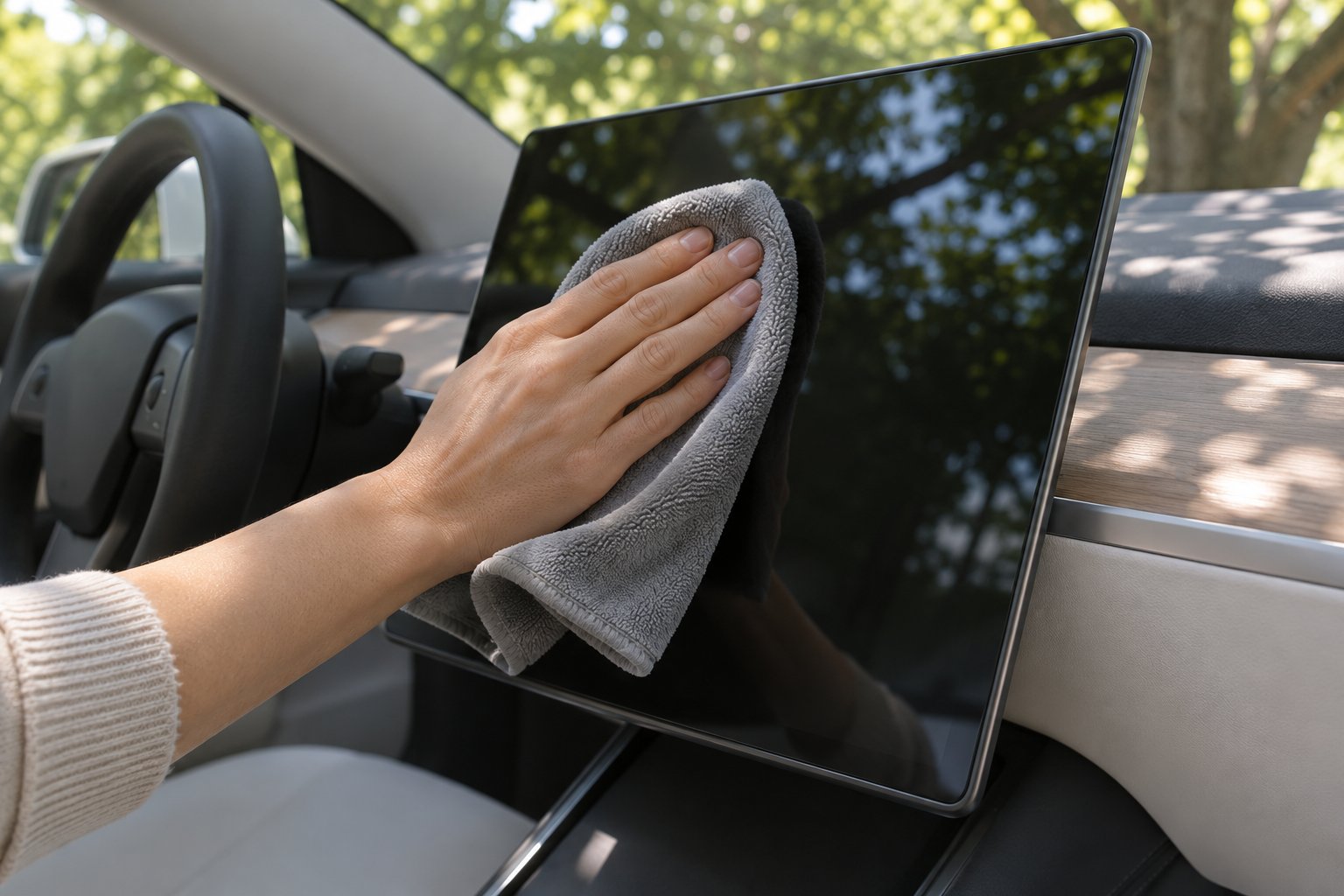
- Treat the glass gently. Wipe it with a soft, lint-free cloth made for displays, and skip glass cleaner and alcohol. A screen protector can also guard against scratches that make taps register less reliably.
- Don't ignore low voltage battery warnings. A weak battery can cause random reboots and a dark screen.
If you'd like a physical layer of protection, CUTIM's Tesla accessories collection sorts protection, organization, and interior options by category. CUTIM sells physical accessories only. It doesn't offer software fixes or repair services.
When Recurring Problems Mean a Tesla Service Visit
How often the screen freezes tells you a lot. One freeze right after a software update is common, and a soft reset usually clears it. Several freezes a week point to a hardware or firmware problem. So does a Tesla logo that keeps looping, or a screen that goes dark again after every restart. More resets won't fix this kind of problem. A Tesla factory reset won't either, because it only erases your personal data.
Keep a short log before you contact Tesla. Write down the date and time of each freeze, what the screen did, and what you were doing when it happened. Also note whether an update had just installed. Take photos of any alerts, and list the resets you already tried, so technicians don't repeat steps.
To request service, open the Tesla app, tap Service, choose a support topic, and describe the problem. Paste in the details from your log. Tesla runs remote diagnostics and then sends a notification so you can schedule a visit. Depending on the repair, that visit is either at a Service Center or with a Mobile Service technician who comes to you. If you don't need a visit, the app gives you troubleshooting steps. If you do, you'll review and confirm a cost estimate before any work starts.
The same approach works on every model, whether you drive a 2016 Model S or a new Model Y. Restart your Tesla screen first, power cycle if needed, and call in a technician when the problem keeps coming back.
Tesla Screen Reset FAQs
1. How do I reset my Tesla screen?
Shift into Park first. Press and hold both scroll buttons on the steering wheel, and keep holding until the display goes black, even if it seems slow to react. Let go, and the Tesla logo should show up within a few seconds. Give the system about 30 seconds to load fully. You don't need to press the brake pedal, and nothing gets deleted, so your profiles, paired phones, and saved places come back as they were. If the screen still lags a few minutes later, do a power cycle. Tap Controls > Safety > Power Off, then wait at least two minutes without opening a door, pressing the brake, or touching the screen. After that, press the brake to wake the car.
2. What is the difference between a soft reset and a hard reset on a Tesla?
A soft reset uses the scroll buttons and restarts only the touchscreen. The term "hard reset" has no single meaning. On forums it usually means a full vehicle power cycle through Controls > Safety > Power Off. Some guides use it for disconnecting the low voltage battery. Leave that job to Tesla Service, because it can cause new errors, damage parts, or affect your warranty. A popular tip says that holding the brake pedal along with both scroll buttons gives a deeper reset, but Tesla's current manual says the brake has no effect during a touchscreen restart. On older Model S and Model X cars with MCU1, you can also restart the instrument panel on its own by holding the Voice Commands and Next buttons for 15 to 30 seconds.
3. Can I reset my Tesla screen while driving?
Many owners have restarted the screen while in Drive. The motors, brakes, and steering keep working, because the scroll button method reboots only the touchscreen. Tesla still says to restart only when the car is stopped and in Park. For about half a minute you lose the car status area, which shows your speed on Model 3 and Model Y. You also lose on-screen safety warnings and the backup camera. Don't rely on Autopilot or FSD (Supervised) while their visuals and alerts are gone. If the display freezes on the highway, you don't need to brake hard. Keep pace with traffic, pull off somewhere safe, shift into Park, and then restart. A power cycle or a factory reset can only be done in Park.
4. Does a factory reset delete everything on a Tesla?
A factory reset wipes your personal data and returns custom settings to their defaults. It keeps the software version already installed, so it won't downgrade the car. You lose saved addresses and navigation history, Bluetooth pairings and imported contacts, Wi-Fi passwords, driver profiles with seat, mirror, and steering wheel positions, streaming logins, and HomeLink programming. Dashcam and Sentry Mode clips are stored on the USB drive, not on the car's computer. Copy the clips you want to keep, and decide whether the drive stays with the car. Run the reset from Controls > Service > Factory Reset using your Tesla account login. Do it before you remove the car from your account, because you can't run it yourself afterward. Keep a working key card or key fob nearby so you don't get locked out.
5. When should I contact Tesla Service about a frozen or black screen?
A single freeze right after a software update is common, and a soft reset usually clears it. Book service if the screen freezes several times a week, the Tesla logo keeps looping, the display stays black or unresponsive after a power cycle, or it locks up again soon after every restart. Before you contact Tesla, check the app for low voltage battery alerts. If you have an older Model S or Model X built before March 2018, ask whether the car already got the eMMC recall repair. Keep a log of dates, symptoms, recent updates, and the resets you tried, and submit it through Service in the Tesla app. Tesla runs remote diagnostics first, and you approve a cost estimate before any work starts.