
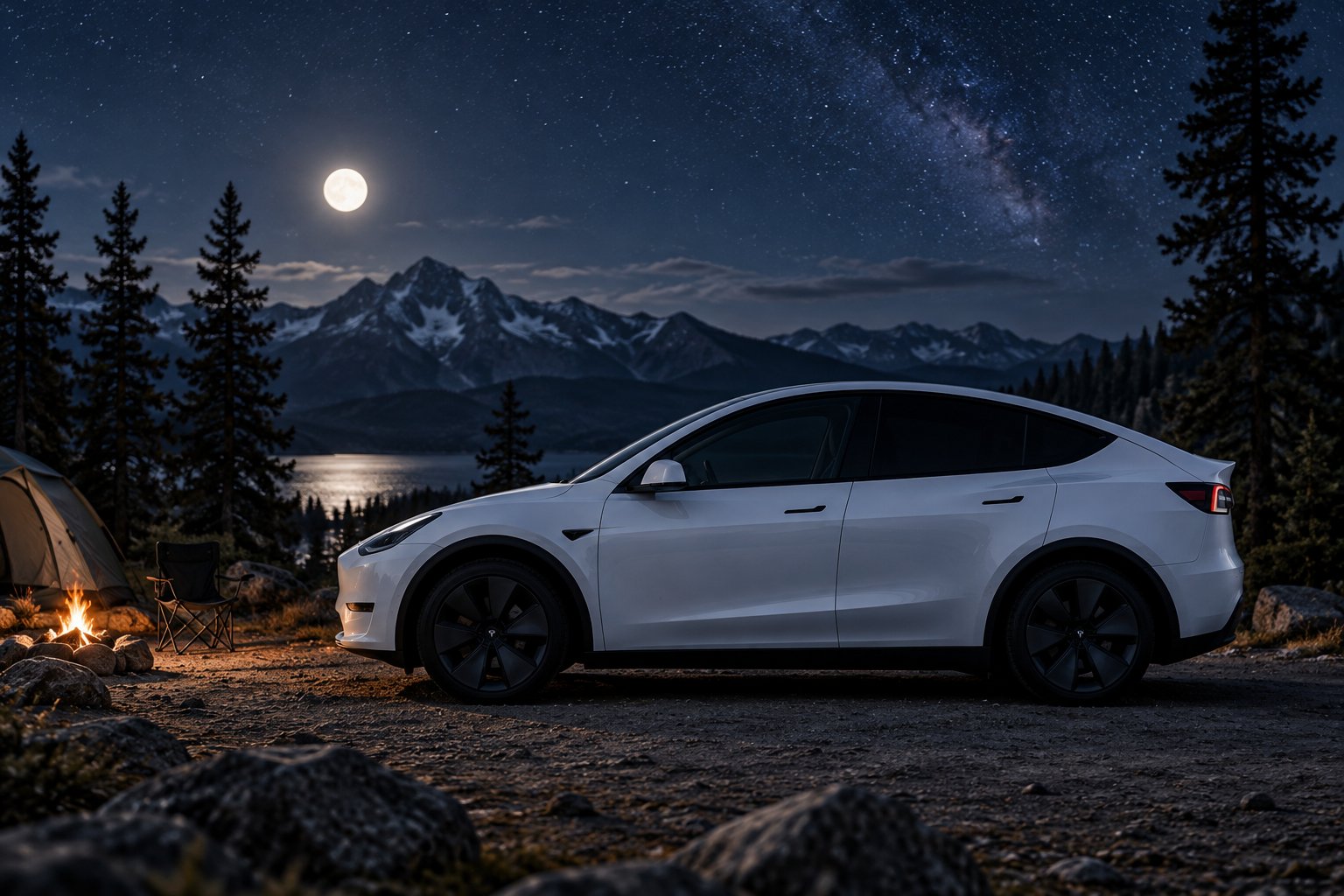
Why the Tesla Camp Mode Screen Keeps You Awake
Imagine this: you have parked your Tesla at a scenic campsite, folded down the rear seats, and activated Camp Mode for a cozy overnight stay. The climate control hums quietly, your phone charges through the USB port, and everything feels perfect — until you try to close your eyes. That massive 15-inch touchscreen is blazing like a nightlight on steroids, flooding the entire cabin with a harsh glow that makes sleep nearly impossible.
This is the frustrating reality every Tesla camper eventually confronts. Camp mode Tesla owners rely on is brilliantly engineered to keep climate control, music, USB power, and the low voltage outlet running while the vehicle sits in Park. According to Tesla's official owner's manual, Camp Mode even disables the Sentry Mode alarm and Walk-Away Door Lock so you can move around inside without triggering alerts. It is genuinely one of the most clever features in any electric vehicle. The catch? The touchscreen stays on by default, displaying a glowing campfire animation that looks charming for about five minutes — and then becomes your worst enemy when you are trying to drift off.
The Camp Mode Screen Problem Every Tesla Camper Faces
Unlike a simple tesla sleep mode where the car powers down and the display goes dark, Camp Mode treats the cabin as an "occupied and active" space. The screen remains illuminated because Tesla designed this feature for entertainment — browsing the internet, watching shows in Tesla Theater, playing arcade games. Sleep was technically part of the vision, but the interface does not offer a single obvious button to black out the display instantly. Whether you own a camp mode Tesla Model 3, a Model Y, or a Model S, the result is the same: a bright rectangle of light that disrupts melatonin production and keeps your brain wired when it should be winding down.
Camp Mode keeps running perfectly even when the screen is off. Climate control, audio playback, USB charging, and interior lighting settings all remain fully active in the background — the display is just an interface, not the engine behind these features.
What This Guide Covers and Why It Matters
Most articles about Camp Mode mention the screen problem in passing, buried inside a general overview. This guide is different. Every section ahead is dedicated specifically to helping you turn off that screen and keep it off all night. You will find step-by-step display settings instructions, a hands-free voice command method for when you are already lying down, the Screen Clean Mode workaround, brightness minimization tricks, and simple physical covers that block the light without touching any software settings. You will also learn exactly which triggers cause the screen to wake back up at 3 AM — and how to prevent each one before it ruins your rest.
The screen is solvable. The real question is which method fits your setup best, and that is exactly where we are headed next.
How to Turn Off the Screen in Tesla Camp Mode Step by Step
You are lying in the back of your Tesla, Camp Mode is humming along perfectly, and that glowing screen is staring right at you. Let's fix it. Two reliable methods exist for shutting down the display, and both keep every Camp Mode feature running silently in the background. The first uses the touchscreen itself, and the second lets you do it entirely hands-free — ideal if you are already settled into your sleeping setup and don't want to crawl back up front.
Using the Touchscreen Display Settings
The most direct way to tackle the screen involves the built-in Display settings menu. If you have ever adjusted your brightness or switched between Dark and Light appearance themes, you have already been in the right neighborhood. Here is the exact path to follow:
- Tap Controls — the car icon located in the bottom-left corner of the touchscreen.
- Select Display from the menu that appears on the left side of the Controls panel.
- Locate the Brightness slider. Drag it all the way to the left to reduce screen output to its absolute minimum. On many software versions, this dims the display significantly but does not fully black it out.
- Look for Screen Clean Mode within the same Display section. Tapping this option darkens the screen completely and disables touch input — effectively giving you the full blackout result. (We will cover this workaround in greater depth in the next section.)
- Once the screen goes dark, settle back into your sleeping position. Camp Mode continues managing climate control, audio playback, and USB charging exactly as before.
A quick note on navigation: Tesla's UI evolves with over-the-air software updates, so the exact layout you see may not match older screenshots floating around forums. The core path, however, has remained consistent — Controls > Display is where brightness and screen options live. If your interface looks slightly different after a recent update, start at Controls and look for the Display submenu. According to Tesla's Model Y owner's manual, the Display section houses Brightness, Appearance, Screen Clean Mode, and several other visual preferences — all accessible from that single Controls entry point.
What should you expect after dimming or blacking out the display? The screen goes dark, but nothing else changes. The small LED indicators on the center console remain as they were. The HVAC fan keeps running at your set temperature. If you had music or a podcast playing, audio continues through the speakers. The tesla model 3 camping mode experience and the Model Y experience are identical here — one center screen, one Controls menu, one result.
Voice Command Method for Hands-Free Control
Picture this: you have already crawled into your sleeping bag, adjusted your pillow, and found that perfect position. The last thing you want to do is sit up, lean forward, and tap through menus. This is exactly where Tesla's voice command system earns its keep.
Tesla vehicles use a natural language processor that interprets conversational requests and translates them into vehicle actions. The system handles most features managed by the touchscreen, and turning off the display is one of them. Here is how to use it:
- Press the right scroll button on the steering wheel, or tap the microphone icon on the touchscreen to activate voice commands.
- Wait for the audible chime that signals the system is listening.
- Say clearly: "Turn off the screen" or "Screen off."
- The display should go dark within a second or two. You will hear no confirmation chime — the screen simply blacks out.
If you are already lying down and cannot easily reach the steering wheel, tapping the microphone icon on the bottom of the touchscreen works just as well. Some owners even initiate the command from a slight distance by saying "Hey Tesla, turn off the screen" if the wake word feature is enabled on their vehicle. Either approach achieves the same outcome: a completely dark cabin with Camp Mode running undisturbed.
The voice command route is especially useful because it doubles as your go-to tool for mid-night adjustments. Feeling too warm at 2 AM? You can say "Set temperature to 66 degrees" without ever touching the screen. Want to pause your ambient playlist? "Pause music" handles it instantly. Understanding what is camp mode Tesla owners can control by voice versus touch becomes genuinely valuable once the screen is off — you retain far more control than most people realize.
Both methods accomplish the same goal, so the choice really comes down to convenience. If you are still setting up camp and moving around the cabin, the touchscreen path gives you visual confirmation of every setting. If you are already horizontal and ready to sleep, voice commands are the clear winner. Either way, what is tesla camp mode doing behind that darkened screen? Exactly what it was doing before — maintaining your chosen temperature, powering your devices, and keeping the cabin comfortable all night long.
Of course, these two primary methods are not the only tricks available. Several lesser-known alternatives offer unique advantages depending on your specific situation, and some of them block even more light than the standard display toggle.
Alternative Screen-Off Methods Most Tesla Owners Miss
The standard display toggle and voice command approach work perfectly for most campers, but they are not the only paths to a dark cabin. A handful of lesser-known techniques give you even more flexibility — especially in situations where the primary methods feel inconvenient or you want a specific type of blackout. Some are built right into Tesla's software and hiding in plain sight. Others skip the software entirely and rely on good old-fashioned physics.
Screen Clean Mode as a Blackout Workaround
Here is a feature Tesla designed for one purpose that camper mode enthusiasts have quietly adopted for another. Screen Clean Mode exists so you can wipe fingerprints and smudges off the touchscreen without accidentally opening apps or changing settings. When activated, it renders the display completely black and disables all touch input. No glowing icons, no stray light, no accidental taps — just a pitch-dark panel of glass.
Sound familiar? That is exactly what you want at midnight inside a parked Tesla.
Activating it takes about five seconds:
- Tap Controls in the bottom-left corner of the touchscreen.
- Select Display from the left-hand menu.
- Tap Screen Clean Mode.
- The screen immediately goes fully black and stops responding to touch.
The result is a true blackout — darker than the minimum brightness setting, because the backlight itself powers down rather than simply dimming. Your tesla model y camp mode session continues running exactly as configured. Climate control holds its target temperature, audio keeps playing if you had something queued, and USB ports stay powered. The screen is simply asleep while everything behind it stays wide awake.
One important caveat: any deliberate touch on the screen reactivates it instantly. That means Screen Clean Mode works best once you are fully settled in your sleeping position and unlikely to brush against the display. If you tend to shift around a lot during the night, or if a passenger might accidentally bump the screen while adjusting a pillow, the display could snap back on without warning. For solo campers who sleep in the rear cargo area — well away from the touchscreen — this is rarely an issue. For front-seat sleepers or anyone with a restless co-pilot, you will want a backup plan.
The Frunk.ly Tesla Camp Mode guide lists Screen Clean Mode as a recommended troubleshooting step for campers bothered by screen brightness, confirming that this workaround is widely used in the Tesla camping community and not just a quirky hack.
Physical Screen Covers and Brightness Minimization
Sometimes the simplest solution is the most reliable one. A physical screen cover eliminates light from the touchscreen regardless of software version, menu layout, or accidental touch reactivation. It works on every Tesla model, every firmware build, and requires zero navigation through settings menus.
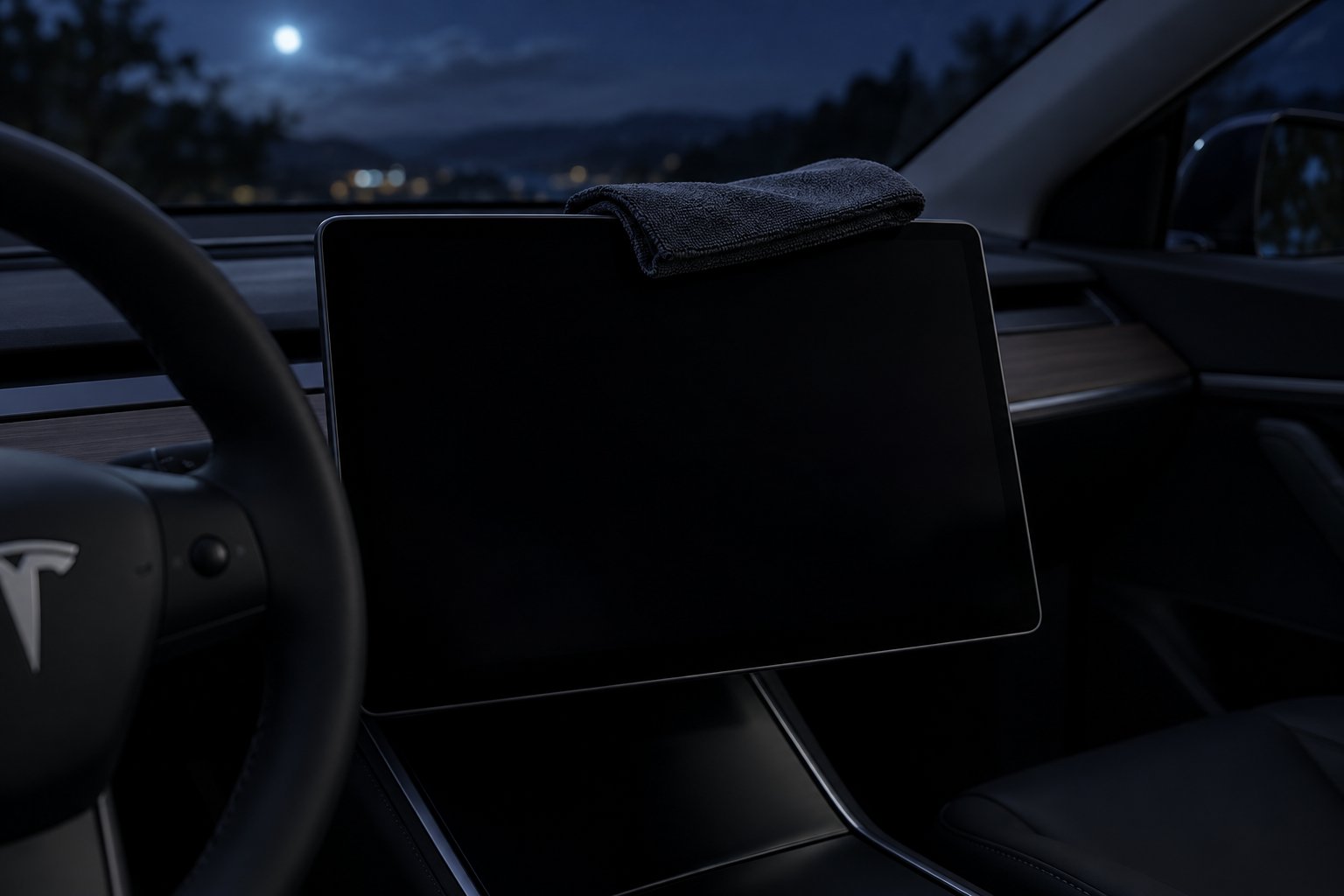
The most common approach? Drape a dark microfiber cloth over the entire touchscreen before you settle in for the night. A standard screen-cleaning cloth works, but any opaque, non-abrasive fabric does the job. Fold it to double thickness if single-layer coverage still lets a faint glow bleed through. The cloth sits against the screen, blocks all emitted light, and can be removed in one motion when you wake up.
For owners who camp regularly, purpose-made screen shades and magnetic privacy covers designed for Tesla's center display offer a more polished solution. These snap onto the screen bezel or attach via friction fit, stay securely in place overnight, and store flat in a door pocket or glove box between trips. They are not expensive — most run under twenty dollars — and they solve the problem permanently without relying on any software behavior.
Then there is the brightness-to-minimum approach, which appeals to campers who want to put tesla in sleep mode visually but still keep a sliver of screen visibility. Dragging the brightness slider all the way down in Controls > Display reduces the backlight to its lowest output. The screen is not fully off, but the glow drops to a faint whisper that many people find tolerable — especially with Tesla's Dark Mode appearance enabled, which swaps the interface to a black background and further minimizes light leakage.
This is ideal when you want the ability to glance at the time or temperature without reactivating a fully blacked-out screen. Think of it as a dim nightstand clock rather than a complete blackout. Combined with a partially draped cloth that covers the top portion of the display while leaving the bottom status bar faintly visible, you get the best of both worlds.
Choosing the Right Method for Your Situation
With multiple screen-off options available, picking the right one depends on how you camp, where you sleep in the cabin, and how sensitive you are to light. The comparison below breaks down each method so you can match it to your specific overnight setup:
| Method | Light Blocked | Ease of Use | Best For |
|---|---|---|---|
| Screen Clean Mode | 100% — full backlight shutdown | Very easy — 3 taps in the menu | Solo campers sleeping in rear cargo area, away from the screen |
| Voice Command ("Turn off the screen") | 100% — display powers off | Effortless — no physical interaction | Anyone already lying down who wants hands-free control |
| Brightness to Minimum + Dark Mode | ~85-90% — faint glow remains | Easy — one slider adjustment | Campers who want a dim clock-like display for quick glances |
| Microfiber Cloth / Screen Cover | 100% — physical light block | Instant — no menu navigation | Frequent campers, front-seat sleepers, or anyone on older firmware |
| Purpose-Made Magnetic Screen Shade | 100% — snug physical fit | Instant — snap on, snap off | Dedicated Tesla campers who want a reusable, clean solution |
Most experienced Tesla campers end up combining methods. A popular pairing is Screen Clean Mode as the primary blackout tool plus a microfiber cloth draped over the display as insurance against accidental reactivation. Others prefer the voice command approach with a magnetic shade standing by in the glove box for backup. There is no single "correct" method — only the one that lets you fall asleep without a glowing rectangle competing with your eyelids.
Whichever approach you choose, one question tends to follow almost immediately: with the screen fully dark, is Camp Mode actually still doing its job behind the scenes? The short answer is yes — but the details of exactly which features keep running and which ones require a screen tap are worth understanding before you commit to a full blackout for the night.
What Happens to Camp Mode When the Screen Goes Dark
Here is the fear that stops many Tesla campers from actually blacking out the display: "If I turn off the screen, will Camp Mode shut down too?" It is a completely reasonable concern. The touchscreen is the command center for virtually everything in a Tesla — climate, navigation, media, vehicle settings. Killing the one interface that controls all of those systems feels like pulling the plug on the entire operation. But that instinct, while understandable, is wrong.
Camp mode runs as a background process on the vehicle's onboard computer, entirely independent of whether the display is active or asleep. Think of it like muting your phone — the apps keep running, notifications still arrive, and alarms still fire on schedule. The screen is just a window into what the car is doing, not the engine that drives it. Darkening that window does not flip a single switch behind the scenes.
Climate Control and Audio Continue Running Normally
The HVAC system is the backbone of any camp mode session, and it does not care one bit about the display state. When you set a target cabin temperature — say, 68 degrees on a chilly mountain night — the climate control module locks onto that number and adjusts heating or cooling continuously. That module communicates directly with the vehicle's thermal management system, not through the touchscreen. Turning the screen off is invisible to it.
The same applies to every other feature that makes camping mode Tesla Model 3 and Model Y owners depend on so practical for overnight stays:
- Climate control — Heating and air conditioning continue maintaining your set temperature without interruption.
- Audio playback — Music, podcasts, or ambient soundscapes keep playing through the cabin speakers at whatever volume you set before blacking out the display.
- USB port power — All USB-A and USB-C ports remain energized, so your phone, CPAP machine, portable fan, or any other connected device keeps charging.
- Low voltage outlet — The 12V accessory outlet stays active for powering camping gear like a small cooler or LED lantern.
- Interior lighting settings — Whatever ambient lighting configuration you chose before turning the screen off persists. If you dimmed the footwell lights or turned them off entirely, they stay that way.
- Camp Mode status — The feature itself remains fully engaged. The car does not interpret a dark screen as a signal to exit Camp Mode or shift into a different power state.
Tesla's official owner's manual confirms that Camp Mode keeps the climate control system running and USB ports powered while the vehicle is in Park. Nothing in that process depends on the touchscreen being illuminated. The display is purely an input and output interface — a way for you to see information and issue commands. Remove it from the equation, and the underlying systems carry on as if nothing changed.
What You Can Still Control via Voice Commands
A dark screen does not mean you lose all control over your environment. This is where Tesla's voice command system becomes genuinely powerful for overnight campers. Even with the display completely off, you can adjust the most important settings without reactivating the touchscreen — just press the right scroll button on the steering wheel or say "Hey Tesla" if the wake word is enabled.
Voice commands give you hands-free access to the adjustments you are most likely to need at 2 AM:
- "Set temperature to 65 degrees" — raises or lowers the cabin target without touching the screen.
- "Turn up the heat" or "Turn down the AC" — relative adjustments when you do not have a specific number in mind.
- "Pause music" or "Play next song" — manages audio playback instantly.
- "Set volume to 3" — fine-tunes speaker output so a playlist does not suddenly feel too loud in a quiet campsite.
- "Turn off the screen" — re-darkens the display if it woke up for any reason and you want it off again.
You retain a surprising amount of control from inside a sleeping bag. Temperature, volume, playback — the three things most likely to need a mid-night tweak are all fully accessible by voice. For anyone wondering how to turn on camp mode Tesla's voice system can also help with that initial activation, though most campers set up Camp Mode visually during the pre-sleep routine and only rely on voice for adjustments afterward.
Certain actions, however, do require you to wake the screen back up by tapping it:
- Browsing the media library to select a new album, playlist, or podcast.
- Adjusting specific climate settings beyond basic temperature — like toggling seat heaters, changing fan speed manually, or switching between recirculated and fresh air.
- Navigating to Controls menus for display brightness, lighting adjustments, or vehicle lock settings.
- Viewing battery charge level or energy consumption details.
- Accessing Tesla Theater, the web browser, or arcade games.
The pattern is straightforward: simple, common adjustments work by voice, while detailed browsing and granular settings need the visual interface. For a typical overnight camp mode session, voice commands cover roughly 90% of what you might need between lights-out and sunrise.
So the bottom line? Darken the screen with confidence. Camp Mode does not flinch. Your climate stays locked, your devices stay charged, and your voice still reaches every critical control. The only thing that actually changes is the amount of light hitting your eyelids — which, of course, is the entire point.
That peace of mind holds steady right up until the screen randomly lights back up at 3 AM for no apparent reason. Except there is always a reason — and every single auto-wake trigger has a specific fix you can apply before you ever close your eyes.
Screen Auto-Wake Triggers and How to Turn Off Tesla Screen for Good
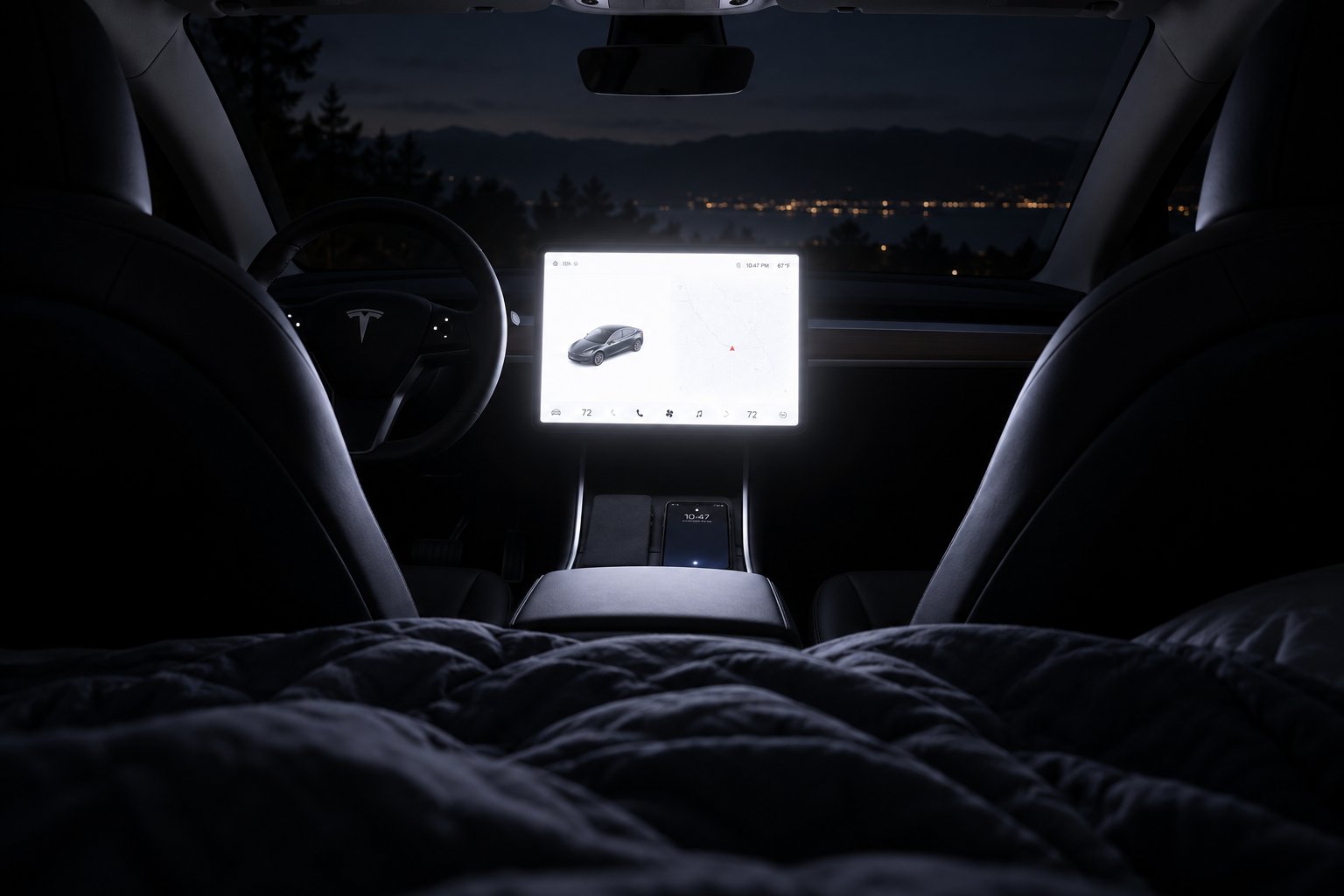
You followed every step. Screen Clean Mode activated, cabin dark, pillow adjusted, eyes closed. Then — at 3:17 AM — the entire cabin floods with light because the touchscreen snapped back on by itself. You squint, fumble to darken it again, and spend the next twenty minutes trying to fall back asleep. Sound familiar? This is the single most aggravating part of trying to turn off the Tesla screen during an overnight Camp Mode session, and it happens because the vehicle has multiple automatic triggers that wake the display regardless of how you shut it down.
The good news? Every one of these triggers is identifiable, and every one of them has a specific prevention strategy you can apply before you settle in for the night. Eliminate the triggers, and the screen stays dark until morning.
Phone Key and Bluetooth Wake Triggers
Your Tesla treats your smartphone as a key. The vehicle constantly monitors the Bluetooth connection between itself and every paired phone, and any change in that connection — a phone moving into range, dropping out of range, or reconnecting after a brief signal interruption — can prompt the screen to wake up and display a status notification.
Imagine this scenario: you are camping with a partner. At 2 AM, they step outside to use a restroom at the campsite. Their phone goes with them. As they walk away, the Bluetooth connection drops and your Tesla registers the phone key leaving proximity. The screen lights up. Five minutes later, your partner returns, the phone reconnects, and the screen lights up again. Two wake events from a single bathroom trip.
The fix is straightforward — keep all paired phone keys physically inside the vehicle for the entire night. Place every smartphone that is registered as a key somewhere stable inside the cabin, ideally in the center console tray or a door pocket where it will not move. If a passenger absolutely needs to step outside, they should leave their phone behind. This keeps the Bluetooth connection stable and prevents the car from interpreting movement as someone arriving or departing.
There is a second layer to this: the Tesla mobile app itself. If anyone with a paired phone opens the Tesla app during the night — even just to casually check battery level or cabin temperature from inside the vehicle — the app communicates directly with the car and can trigger a screen wake. The same thing happens if the app pushes a notification, such as a charging reminder or a software update alert. Close the Tesla app completely on every paired phone before settling in. On both iOS and Android, force-quit the app rather than just switching away from it, so background processes do not initiate contact with the vehicle while you sleep.
Sentry Mode and Notification Conflicts
Here is a conflict that catches many first-time Tesla campers off guard. Sentry Mode is Tesla's built-in surveillance system — it uses the vehicle's external cameras to monitor the surroundings and records events when it detects suspicious activity nearby. When Sentry Mode detects a trigger event, it needs to display an alert on the touchscreen, which means the display wakes up immediately. A passing pedestrian, a car parking next to you, or even a raccoon wandering past your bumper can produce enough motion to activate Sentry's alert and light up your cabin in the middle of the night.
The deeper issue is that Sentry Mode fundamentally conflicts with Camp Mode's purpose. Camp Mode is designed for occupied overnight stays — the Tesla North America Guide confirms that Camp Mode automatically disables Sentry Mode and the vehicle alarm so interior movement does not trigger recording or alerts. However, if you manually re-enabled Sentry Mode after activating Camp Mode, or if a software quirk left it partially active, you could experience screen wake events from external motion detection throughout the night.
The solution: verify that Sentry Mode is disabled before you lie down. Navigate to Controls > Safety & Security and confirm the Sentry Mode toggle is off. In camp mode vs dog mode comparisons, this is one of the practical differences — Dog Mode leaves Sentry active because the owner is away from the vehicle, while Camp Mode disables it because you are inside. Respecting that design intention and keeping Sentry off saves you from both unwanted screen activations and unnecessary battery drain, since Sentry Mode's continuous camera processing consumes additional energy overnight.
How to Prevent Mid-Night Screen Activation
Beyond phone keys and Sentry Mode, several other triggers can quietly sabotage your blackout setup. Door events are the most obvious — opening or closing any door sends a signal that the vehicle interprets as occupant activity, and the screen responds by waking up to display relevant information. During a Camp Mode overnight session, avoid opening doors unless absolutely necessary. If you need ventilation, crack a window beforehand rather than opening a door at midnight. If someone does need to exit, accept that the screen will activate and have your preferred method ready to darken it again quickly — a voice command like "turn off the screen" takes about two seconds.
Scheduled features are a sneakier category of wake triggers. If you have Scheduled Departure configured — the feature that pre-conditions the cabin and battery before a set departure time — the car may wake the screen to begin its preparation routine in the early morning hours. Disable Scheduled Departure before your Camp Mode session by going to Controls > Charging > Scheduled Departure and toggling it off. Similarly, if Tesla has a pending software update ready to install, the vehicle may prompt you with a screen notification asking whether to proceed. Dismiss or postpone any pending updates before settling in, or the installation prompt could illuminate the cabin at an unpredictable hour.
Cabin Overheat Protection is yet another potential trigger. This safety feature monitors interior temperature and activates cooling if the cabin exceeds a threshold, which can wake the screen to display a climate notification. Since Camp Mode already manages cabin temperature actively, Cabin Overheat Protection is redundant during an overnight session. Disable it under Controls > Safety & Security to remove one more potential source of screen activation.
The table below maps every common trigger to its specific fix, giving you a quick-reference checklist to run through before lights-out:
| Auto-Wake Trigger | Why It Happens | Prevention Method |
|---|---|---|
| Door open / close | Vehicle detects occupant activity and wakes display | Avoid opening doors overnight; use cracked windows for ventilation instead |
| Phone key leaves Bluetooth range | Car registers key departure and updates the screen | Keep all paired phones inside the vehicle all night |
| Phone key reconnects | Returning phone triggers a new Bluetooth handshake | Same — leave phones stationary inside the cabin |
| Tesla app opened on a phone | App communicates with vehicle, waking the display | Force-quit the Tesla app on every paired phone before sleeping |
| Tesla app push notification | Charging alerts or update prompts reach the vehicle | Force-quit the app or disable its notifications in phone settings |
| Sentry Mode event | External motion triggers a camera alert displayed on screen | Verify Sentry Mode is off under Controls > Safety & Security |
| Scheduled Departure | Pre-conditioning routine activates before your set departure time | Disable under Controls > Charging > Scheduled Departure |
| Pending software update | Vehicle prompts for installation approval on screen | Dismiss or postpone updates before settling in |
| Cabin Overheat Protection | Safety feature triggers cooling and displays a notification | Disable under Controls > Safety & Security (Camp Mode handles climate) |
Run through this table once during your pre-sleep setup and you eliminate virtually every scenario that could light up the cabin overnight. It takes about two minutes of tapping through menus — a small investment for eight uninterrupted hours of darkness.
One final tip: if the screen does wake up despite all precautions, resist the urge to investigate. Simply say "Hey Tesla, turn off the screen" from your sleeping position and let it go dark again. Engaging with the display — scrolling through menus to figure out what caused the wake event — only exposes your eyes to more light and makes falling back asleep harder. Diagnose it in the morning. Right now, the only thing that matters is how to turn the Tesla screen off again as fast as possible.
With the auto-wake triggers neutralized, the screen stays dark — but does the solution look exactly the same across every Tesla model? The answer depends on whether your vehicle has one screen or two, and the hardware differences between models introduce a few nuances worth knowing before your next overnight trip.
Model-Specific Screen-Off Differences for Every Tesla
Camping mode works identically across the Tesla lineup — climate control, USB power, audio, and interior lighting all behave the same way regardless of which model you own. The screen-off experience, however, is a different story entirely. Tesla's vehicles vary significantly in how many displays they have, how large those displays are, and what happens to each one when you attempt to darken the cabin. Knowing your specific model's hardware layout is the difference between a fully blacked-out interior and a lingering glow you did not expect.
Model 3 and Model Y Screen-Off Instructions
If you drive a Model 3 or Model Y, you are working with the simplest screen setup in the Tesla family. Both vehicles feature a single 15.4-inch center touchscreen mounted in landscape orientation on the dashboard. There is no instrument cluster behind the steering wheel, no secondary display on the dashboard — just that one central panel handling everything from speed readouts to climate controls to media playback.
This minimalist design is actually a huge advantage for overnight camping. When you turn off that single screen — whether through Screen Clean Mode, a voice command, or a physical cover — the entire cabin goes dark. No secondary display stays illuminated. No hidden instrument panel glows behind the wheel. One screen off means total blackout. For model y camp mode sessions and Model 3 overnight stays alike, this single-screen architecture makes the process refreshingly straightforward.
The settings path is identical on both vehicles:
- Tap Controls in the bottom-left corner of the touchscreen.
- Select Display from the left-side menu.
- Choose your preferred method — drag the Brightness slider to minimum, activate Screen Clean Mode for a full blackout, or back out and use a voice command to power the display off entirely.
The UI layout between Model 3 and Model Y is virtually identical. Both run the same software interface, and Tesla's over-the-air updates apply to both models simultaneously. You will not encounter a situation where the Display submenu lives in a different location on one model versus the other. The only minor difference you might notice is that newer Model 3 vehicles produced from late 2023 onward include a small 8-inch rear display between the front seats. This rear screen is primarily for entertainment and does not emit significant light during Camp Mode, but if it bothers you, it can be managed independently through its own settings or simply covered with a cloth.
The 15.4-inch display at 1920 by 1200 resolution produces a meaningful amount of light in an enclosed cabin — enough to read a book by, and certainly enough to prevent sleep. Blacking it out completely eliminates the only artificial light source inside the vehicle, leaving you with nothing but the faint glow of exterior streetlights filtering through the windows (which is where window shades come in, but that is a separate topic).
Model S and Model X Dual-Screen Considerations
Here is where things get more nuanced. If you own a Model S or Model X, you are dealing with a multi-display vehicle, and turning off the center screen alone may not give you the full darkness you expect.
Both the Model S and Model X feature a large 17-inch center touchscreen — nearly two inches larger diagonally than the Model 3 and Model Y panel. That extra screen real estate translates directly into more light output. The 2021 and newer versions use a horizontal 17-inch display at 2200 by 1300 resolution, while pre-2021 models have a vertically oriented 17-inch screen. Either way, it is a bigger, brighter surface to contend with when you are trying to sleep.
The real complication, though, is the instrument cluster. Unlike the Model 3 and Model Y, the Model S and Model X have a dedicated display behind the steering wheel that shows speed, range, battery status, and driving visualizations. This instrument cluster — a 12.3-inch screen on older models — operates somewhat independently from the center touchscreen. When you darken the main center display using any of the methods covered earlier, the instrument cluster may remain partially illuminated or continue showing information.
What does camping mode do in a Tesla with two screens? The same thing it does in a single-screen vehicle — climate, audio, USB power, and lighting all stay active. But you have two light sources to manage instead of one. Here is how to handle both:
- Turn off the center touchscreen using Screen Clean Mode, a voice command, or your preferred method — the process is the same as on Model 3 and Model Y, navigating through Controls > Display.
- For the instrument cluster, reduce its brightness through the Display settings as well. The cluster typically dims automatically when the center screen goes off, but on some software versions it may retain a low-level glow showing minimal information like time or battery percentage.
- If the instrument cluster still emits noticeable light, a small microfiber cloth or purpose-made cover draped over the top of the steering wheel area blocks the remaining glow effectively.
Model S and Model X vehicles from 2021 onward also include a rear entertainment display — an 8-inch-plus screen between the front seats intended for rear-seat passengers. During Camp Mode, this display can be turned off through its own interface, but it is worth verifying it is dark before you settle in. On older Model S and X vehicles without the rear display, you only need to manage the center screen and instrument cluster.
The table below summarizes what is camp mode on Tesla like from a screen-off perspective across every current model:
| Model | Center Screen Size | Instrument Cluster | Screens to Manage | Full Blackout Difficulty |
|---|---|---|---|---|
| Model 3 | 15.4 inches | None | 1 (center only) | Easy — one screen off equals total darkness |
| Model Y | 15.4 inches | None | 1 (center only; rear display on newer builds) | Easy — same single-screen advantage as Model 3 |
| Model S (2021+) | 17 inches | Yes — behind steering wheel | 2-3 (center + cluster + optional rear display) | Moderate — cluster may retain a faint glow |
| Model X (2021+) | 17 inches | Yes — behind steering wheel | 2-3 (center + cluster + optional rear display) | Moderate — same dual-screen challenge as Model S |
| Model S / X (Pre-2021) | 17 inches (vertical) | Yes — 12.3-inch display | 2 (center + cluster) | Moderate — larger vertical screen plus instrument cluster |
Regardless of which Tesla you own, the Controls > Display menu path remains your starting point. Tesla keeps the software interface consistent across models even when the hardware differs. If a future update changes the exact location of the Screen Clean Mode toggle or brightness slider, it will almost certainly still live somewhere within the Display submenu. Start there, and you will find what you need.
For Model 3 and Model Y owners, the screen-off process is essentially a solved problem — one action, total darkness. For Model S and Model X campers, that extra minute spent addressing the instrument cluster and rear display makes the difference between a nearly dark cabin and a truly dark one. A small cloth kept in the glove box handles any residual glow that software controls cannot fully eliminate.
With the display fully managed on your specific model, one practical question remains: does all this screen darkness actually make a measurable difference in overnight battery consumption? The answer involves understanding how much power the display draws compared to the real energy heavyweight running all night — your climate control system.
Does Turning Off the Screen Save Battery in Camp Mode
You have darkened the display, neutralized every auto-wake trigger, and confirmed the process for your specific model. The cabin is pitch black. But here is the practical follow-up question every camping mode Tesla owner eventually asks: does a dark screen actually save meaningful battery overnight, or is it purely a sleep-quality move?
The short answer — it helps, but not as much as you might hope. The longer answer requires understanding where your battery actually goes during a tesla model 3 camp mode session and which systems are responsible for the lion's share of overnight drain.
How Much Power the Screen Actually Uses
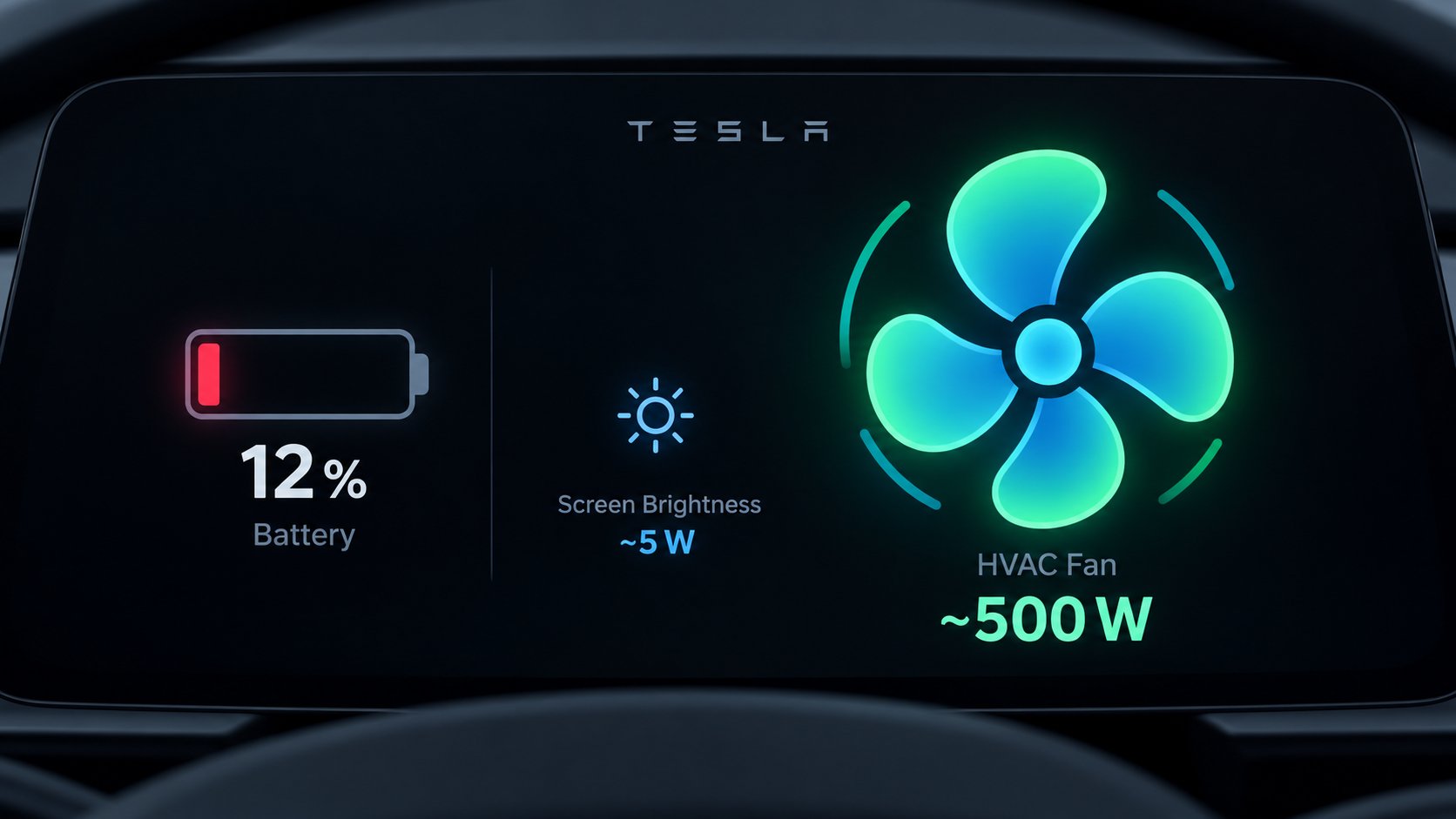
Tesla's center touchscreen is a large backlit LCD panel — 15.4 inches on Model 3 and Model Y, 17 inches on Model S and Model X. Any backlit display of that size consumes energy continuously while illuminated. Industry estimates for automotive-grade LCD panels in this size range place power draw somewhere between 5 and 15 watts depending on brightness level and displayed content. At full brightness with a vivid Camp Mode animation, the screen sits toward the upper end of that range. Dimmed to minimum, it drops considerably.
Over an eight-hour overnight session, a screen drawing roughly 10 watts would consume about 0.08 kWh of energy. On a Tesla with a 60 kWh usable battery capacity, that translates to approximately 0.13% of total charge. Even on a Standard Range battery around 50 kWh, you are looking at a fraction of a single percentage point.
Compare that to the real power heavyweight: the HVAC system. Testing by Enhance Auto on a 2024 Model 3 Highland showed the heat pump consuming 1.1 kWh over just two hours in near-freezing conditions — and that was simply maintaining cabin temperature, not running fans, USB ports, or interior lighting simultaneously. Extrapolate that to an eight-hour Camp Mode night around freezing, and the climate system alone could consume 4 to 5 kWh or more. Real-world experience data from EV-MATS across multiple Model 3 and Model Y vehicles shows overnight drain ranging from 8-15% in mild weather up to 30-50% around freezing temperatures — virtually all of it driven by climate control demands.
The screen's contribution to that total? Roughly 1-2% of the overall Camp Mode energy budget. Turning it off is a smart habit, but it is not going to rescue a low-battery situation or add significant driving range the next morning. Think of it as the equivalent of turning off a bedroom lamp to save electricity when the central heating system is running full blast — technically helpful, practically negligible compared to the furnace.
Bigger Battery Savers to Prioritize Overnight
If you want to genuinely stretch your battery through the night, focus your energy-saving effort on the systems that actually move the needle. The list below ranks the most impactful strategies from greatest battery savings to least — so you know exactly how to put tesla in camping mode with maximum efficiency:
- Lower your climate target temperature by 2-3 degrees — This is the single biggest lever you can pull. Setting Camp Mode to 64-66°F instead of 72°F dramatically reduces how hard the heat pump or AC compressor works. Use a warm duvet or sleeping bag to compensate for the cooler cabin air. Each degree lower saves approximately 0.3-0.5% per hour in cold conditions.
- Install window sun shades or privacy covers — Insulating the glass surfaces reduces heat transfer between the cabin and outside air. In summer, shades block solar heat gain; in winter, they retain warmth. This cuts HVAC workload by an estimated 10-15%, which over eight hours adds up to several percentage points of battery saved.
- Disable Sentry Mode — Continuous camera processing and recording consumes additional energy on top of Camp Mode's climate demands. Camp Mode disables it by default, but double-check that it is off. There is no security benefit while you are sleeping inside the vehicle.
- Park strategically — Shade in summer, wind shelter in winter. Reducing environmental extremes means the climate system cycles less aggressively. A vehicle parked next to a building in cold wind loses less heat than one exposed on all sides.
- Pre-condition the cabin while plugged in — If your campsite has EV charging, heat or cool the cabin to your target temperature on grid power before switching to Camp Mode on battery. This gives the HVAC system a head start without spending stored energy.
- Use recirculated air mode — Recirculating cabin air rather than pulling in fresh outside air means the HVAC system processes air that is already close to the target temperature, reducing energy expenditure.
- Close unused air vents — Direct conditioned air only toward your sleeping area rather than the entire cabin. Concentrated airflow keeps you comfortable while reducing total HVAC output.
- Turn off the touchscreen — A worthwhile habit that eliminates a small but real power draw and, more importantly, protects your sleep quality. The battery savings are modest, but every fraction counts on a cold night with limited charge.
Notice where the screen lands on that list — last. It belongs there not because it is unimportant, but because the energy math is clear. Climate control dominates Camp Mode battery consumption by an overwhelming margin. The screen is a sleep-quality issue first and a battery-saving measure a distant second.
For planning purposes, the EV-MATS overnight drain guide recommends starting with at least 40-50% charge for mild nights, 50-60% for warm or cool conditions, and 65-75% if temperatures hover around freezing. These figures assume climate control running all night — the screen being on or off barely shifts those numbers. Arrive with enough charge to cover the HVAC demand, apply the tips above, and the screen becomes just one small piece of a much larger efficiency puzzle.
Battery management is the practical side of overnight Tesla camping, but it is only half the comfort equation. The other half has nothing to do with software settings or energy consumption — it is about what you are actually lying on for those eight hours, and whether the surface beneath you supports a full night of genuine rest.
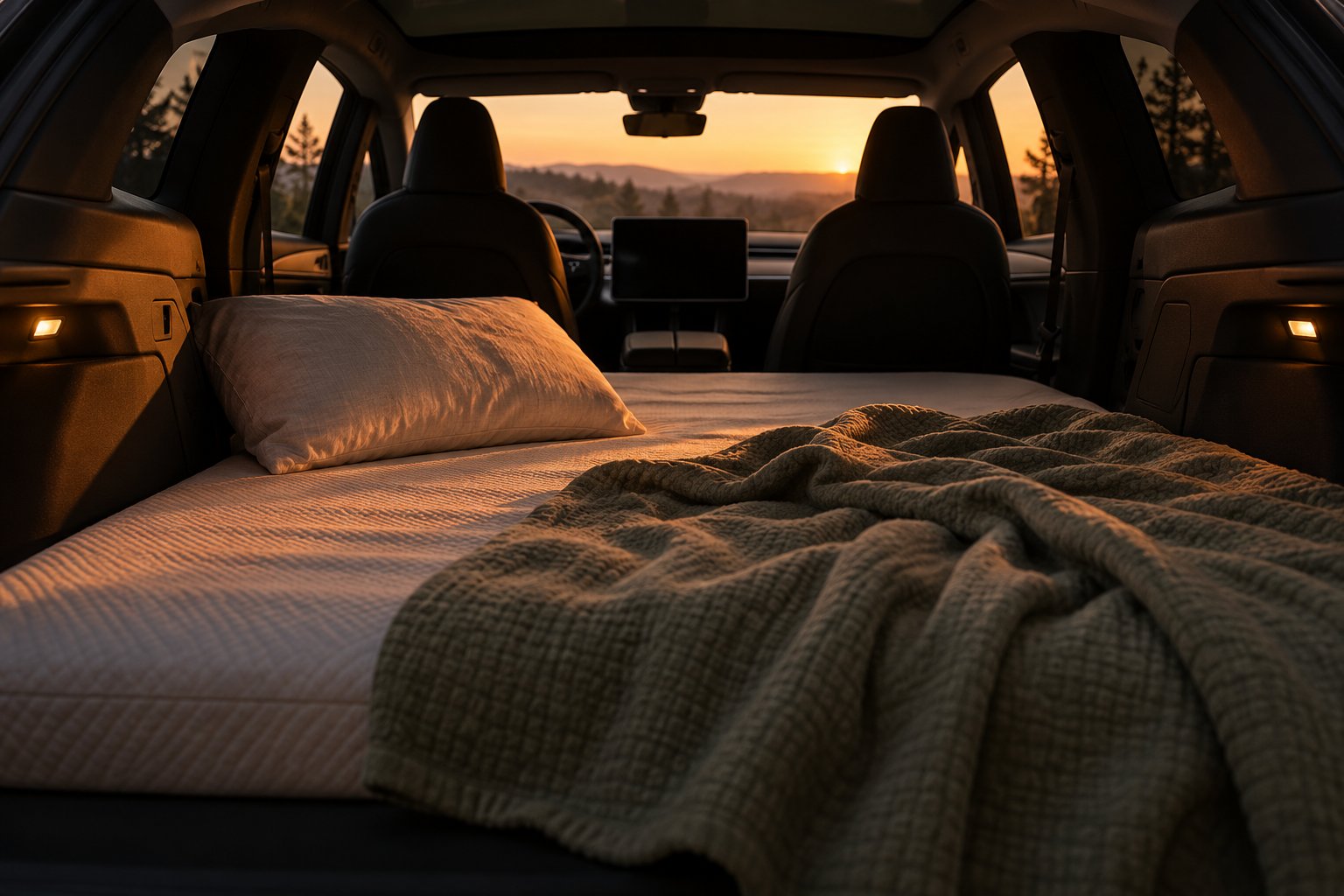
Setting Up a Comfortable Overnight Sleep After Screen-Off
A dark cabin solves the light problem. But have you ever tried sleeping on a bare Tesla cargo floor for eight hours? The screen could be off, the temperature perfect, the campsite silent — and you will still wake up stiff, sore, and wondering why your hip feels like it spent the night on a tile floor. That is because the physical sleeping surface inside a Tesla is just as critical to overnight comfort as the software settings you spent the last several sections dialing in.
What is camp mode ultimately designed for? Keeping you comfortable while the vehicle is parked overnight. Climate control handles the air. The screen-off methods handle the light. But nothing in Tesla's software can fix a lumpy, uneven surface pressing into your spine. That part is on you — and the solution involves understanding exactly what your car's interior looks like when the seats go flat.
Creating a Flat Sleeping Surface in Your Tesla
Folding down the rear seats in a Model 3 or Model Y creates a continuous cargo area that extends from the trunk all the way to the backs of the front seats. On paper, it sounds like a ready-made bed. In practice, the surface you are left with has several comfort problems that become painfully obvious after about thirty minutes of lying down.
The first issue is the transition gap. Where the folded seat backs meet the trunk floor, there is a noticeable step — sometimes a full inch or more of height difference depending on the model year. Your lower back finds this gap immediately, and it creates a pressure point that no amount of repositioning can eliminate. The second issue is the angle. The folded seats do not sit perfectly level with the trunk floor; they tilt slightly, creating a subtle incline that you barely notice while loading cargo but absolutely feel when you are horizontal. Third, the surface itself is hard molded plastic and thin carpeting over metal — materials designed for durability, not for sleeping.
Detailed measurements from EV-MATS put the Model 3 sleeping area at approximately 180-185 cm (71-73 inches) long and 96-120 cm (38-47 inches) wide, with roughly 50-55 cm of vertical headroom. The Model Y offers slightly more room — around 190-195 cm in length and 100-130 cm in width. Either way, the dimensions are workable for one or two adults. The comfort challenge is not about space. It is about what fills that space between your body and the hard cargo floor beneath it.
This is exactly why experienced Tesla campers consider a purpose-built mattress the single most important camping accessory after Camp Mode itself. A mattress designed specifically for Tesla interior dimensions fills the transition gaps, levels the incline between seat backs and trunk floor, and provides genuine cushioning over the hard cargo surface. Generic air mattresses and standard camping pads leave voids at the edges, bunch up against the wheel wells, and slide around on the smooth cargo liner — a Tesla-specific mattress eliminates all three problems because it is cut to match the exact interior contours.
Choosing the Right Mattress for Your Model
Not every Tesla mattress is the same, and the right choice depends on how you camp, how often you camp, and how much storage space you are willing to dedicate. CUTIM's Tesla Mattresses & Camping collection gives Model 3 and Model Y owners a convenient starting point — you can compare foam and inflatable options side by side, check dimensions against your specific vehicle, and evaluate packing requirements before committing. Having that kind of model-specific comparison in one place saves the guesswork that comes with trying to adapt generic camping gear to a Tesla's unique cargo shape.
When evaluating any Tesla camping mattress, these are the factors that matter most:
- Vehicle fitment — The mattress should be designed for your exact model. A Model 3 mattress will not fit a Model Y properly, and vice versa. Wheel well cutouts, trunk width, and seat-fold geometry all differ between models. Always verify compatibility before purchasing.
- Foam vs. inflatable — Foam mattresses (memory foam or high-density foam) offer consistent support and eliminate the risk of deflation overnight, but they are bulkier to store. Inflatable mattresses pack down to a fraction of the size and weigh less, making them ideal for trips where trunk space is shared with other gear — but they require inflation time and can lose firmness gradually through the night.
- Packed size — If you are road-tripping and need the trunk for luggage during the day, a mattress that rolls or folds into a compact carrying bag is essential. Foam options typically compress into a duffel-sized package, while inflatables can shrink to roughly the size of a rolled sleeping bag.
- Thickness — Thinner mattresses (2-3 inches) save space but may not fully mask the hard spots and gaps in the cargo floor. Thicker options (4-6 inches) provide hotel-quality cushioning but reduce the already-limited vertical headroom — especially in the Model 3, where clearance above the sleeping surface is only about 50-55 cm to begin with. Finding the right balance between comfort and headroom is a personal preference that depends on your height and sleeping style.
A well-chosen mattress transforms the Tesla camping experience from "technically possible" to genuinely comfortable. Combined with the screen-off techniques from earlier sections, a proper climate setting, and a few basic bedding items like a pillow and lightweight blanket, you end up with a sleeping setup that rivals many traditional car camping arrangements — with the added luxury of climate control running silently all night.
The technical solutions and physical comfort elements are all in place. What pulls everything together into a seamless overnight routine is a clear, phase-by-phase checklist — one that walks you from initial Camp Mode activation through a dark, comfortable night and into a smooth morning departure.
The Complete Camp Mode Screen Management Checklist
You have the methods. You know the triggers. You understand the model-specific nuances and the battery math. All that knowledge is valuable — but at 10 PM in a dark campsite, you do not want to scroll through an entire article trying to remember step four of something you read three sections ago. What you need is a single, repeatable routine you can follow from the moment you park to the moment you drive away the next morning.
This tesla camping screen off checklist breaks the overnight experience into three distinct phases. Run through each one in order, and you will eliminate screen glow, prevent mid-night wake events, and start the next day with every setting restored to normal. Print it, screenshot it, or bookmark it — this is your go-to reference for how to use camp mode Tesla overnight without a single unwanted flash of light.
Pre-Sleep Screen and Settings Checklist
This phase handles everything before your head hits the pillow. The goal is to configure the vehicle so that Camp Mode runs flawlessly in complete darkness for the next eight hours with zero interruptions. Work through these steps while you are still moving around the cabin and have easy access to the touchscreen:
- Park on level ground and shift into Park. Camp Mode can only activate when the vehicle is stationary. Choose a spot where the morning sun will not hit your windshield directly — you will thank yourself at 6 AM.
- Fold down the rear seats and set up your sleeping surface. Get your mattress, bedding, and pillow arranged before configuring any tesla camp mode settings. You do not want to be climbing over a perfect software setup to fix a crooked sleeping pad.
- Activate Camp Mode. Tap the temperature reading or fan icon at the bottom of the touchscreen to open Climate Controls, then select Camp from the mode row at the top. Confirm the Camp Mode indicator appears on the display.
- Set your target temperature. Aim for 64-68°F (18-20°C) for the best balance of sleep comfort and battery efficiency. Use a sleeping bag or duvet to make up the difference rather than pushing the cabin temperature higher.
- Queue your audio. If you want ambient sounds, white noise, or a sleep playlist running overnight, start it now and set the volume low. Audio continues playing when the screen goes dark.
- Disable Sentry Mode. Navigate to Controls > Safety & Security and confirm the Sentry Mode toggle is off. Camp Mode disables it by default, but verifying eliminates any edge-case screen wake from external motion detection.
- Disable Scheduled Departure. Go to Controls > Charging > Scheduled Departure and toggle it off. A pre-conditioning routine kicking in at 5 AM will light up the screen and potentially wake you.
- Disable Cabin Overheat Protection. Under Controls > Safety & Security, turn this off. Camp Mode already manages cabin temperature — Overheat Protection is redundant and creates another potential screen-wake trigger.
- Dismiss any pending software updates. If an update notification is waiting, postpone it. Installation prompts appearing at 3 AM are an unwelcome alarm clock.
- Force-quit the Tesla app on every paired phone. Do not just minimize it — fully close it on both iOS and Android. Background app activity communicates with the vehicle and can wake the display.
- Place all paired phones inside the vehicle. Tuck them into the center console or a door pocket where they will stay stationary all night. A phone leaving Bluetooth range — even briefly — triggers a screen wake event.
- Turn off the screen using your preferred method. Choose whichever approach fits your setup: Screen Clean Mode via Controls > Display, a voice command ("Hey Tesla, turn off the screen"), or a physical cover draped over the display. If you are a belt-and-suspenders person, combine Screen Clean Mode with a microfiber cloth for insurance against accidental reactivation.
Twelve steps, roughly two minutes of effort. Every auto-wake trigger is neutralized, every comfort setting is locked in, and the cabin is dark. Close your eyes.
Mid-Night Screen Wake Troubleshooting
Even with a bulletproof pre-sleep routine, the occasional screen wake can still happen — a Bluetooth hiccup, an unexpected app notification, or a door that got bumped. If the cabin suddenly fills with light at 2 AM, here is how to handle it without fully waking up or losing your ability to fall back asleep:
- Do not look directly at the screen. Shield your eyes with your hand or a pillow. The goal is to minimize light exposure to your retinas so your brain does not interpret the glow as "time to wake up."
- Use a voice command immediately. From your sleeping position, say "Hey Tesla, turn off the screen" or press the right scroll button on the steering wheel if you can reach it. This re-darkens the display in under two seconds without any visual interaction.
- If voice commands are unavailable, reach for your physical cover. A microfiber cloth or magnetic screen shade kept within arm's reach serves as instant backup. Drape it over the display and deal with the underlying cause in the morning.
- Need a climate adjustment? Stay hands-free. Say "Set temperature to 66 degrees" or "Turn down the heat" instead of tapping the screen. Voice commands handle temperature, volume, and playback without reactivating the display.
- Resist the urge to diagnose. Scrolling through menus to figure out what triggered the wake event exposes your eyes to more light and engages your brain at exactly the wrong moment. Make a mental note and investigate after sunrise.
The mid-night protocol is deliberately minimal. Speed and darkness are the only priorities. Get the screen off, keep your eyes closed, and let sleep take over again.
Morning Routine to Restore Normal Operation
Camp Mode served its purpose. The cabin is comfortable, your devices are charged, and you actually slept. Before driving to the next destination or nearest Supercharger, take a minute to reverse the pre-sleep configuration and restore your vehicle to its normal operating state:
- Tap the touchscreen to wake it. A single tap anywhere on the display brings it back to life. The familiar Camp Mode interface appears with your current climate settings and battery status.
- Check your battery level. Glance at the charge percentage and estimated range. If you started the night with sufficient charge and followed the battery-saving strategies from earlier sections, you should have plenty of range to reach your next stop. As a reference, EV-MATS experience data shows mild-night drain of 8-15% and cold-night drain of 30-50% — compare your actual result to plan your morning route.
- Exit Camp Mode. Tap the Climate menu and select Off, or simply shift out of Park when you are ready to drive. Either action ends the Camp Mode session immediately.
- Re-enable Sentry Mode. Navigate to Controls > Safety & Security and toggle Sentry Mode back on. Your vehicle is no longer occupied overnight, so camera surveillance should resume for theft deterrence.
- Re-enable Cabin Overheat Protection. Same menu — turn it back on so the vehicle protects itself against extreme interior temperatures when parked during the day.
- Re-enable Scheduled Departure if needed. If you normally use this feature for your daily commute, toggle it back on under Controls > Charging > Scheduled Departure.
- Reopen the Tesla app on your phone. Resume normal app functionality for remote monitoring, lock/unlock controls, and charging status on the road.
- Remove any physical screen covers. Stow your microfiber cloth or magnetic shade in the glove box or door pocket for the next trip.
Eight steps, about one minute of effort. Every setting you changed the night before is now back to its default state. Your Tesla is ready to drive, and no disabled safety feature lingers forgotten in the background.
Turning off the screen in Camp Mode is simple once you know the right method for your model. Screen Clean Mode, a voice command, or a physical cover — pick one, apply it, and Camp Mode continues running perfectly in the background all night long.
That is the entire lifecycle — pre-sleep setup, mid-night recovery, and morning restoration. Every technique in this guide funnels into these three phases. Whether you drive a Model 3, Model Y, Model S, or Model X, the routine adapts to your hardware with only minor variations. The screen problem that started this article has a clear, repeatable solution. Use it once, and it becomes second nature by the second trip. Your Tesla already knows how to keep you comfortable overnight — now you know how to keep it dark while it does.
Tesla Camp Mode Screen-Off FAQs
1. Does Camp Mode stop working if I turn off the Tesla screen?
No. Camp Mode operates as a background process on the vehicle's onboard computer, completely independent of the display state. When you darken or power off the touchscreen, climate control continues holding your set temperature, audio keeps playing, USB ports remain powered, and interior lighting stays configured exactly as you left it. The screen is simply an interface for viewing information and issuing touch commands — it is not the engine running Camp Mode behind the scenes. You can also use voice commands like 'Set temperature to 66 degrees' or 'Pause music' to make adjustments without reactivating the display.
2. Why does my Tesla screen keep turning back on during Camp Mode at night?
Several automatic triggers can wake the display overnight. The most common culprits include a paired phone key moving in or out of Bluetooth range, the Tesla mobile app being opened or sending push notifications, Sentry Mode detecting external motion, door open or close events, Scheduled Departure pre-conditioning routines, pending software update prompts, and Cabin Overheat Protection activating. To prevent these, keep all paired phones stationary inside the cabin, force-quit the Tesla app on every device, verify Sentry Mode is off, disable Scheduled Departure and Cabin Overheat Protection, and avoid opening doors unless necessary.
3. What is the fastest way to turn off the Tesla screen while lying down in Camp Mode?
The fastest hands-free method is using a voice command. Press the right scroll button on the steering wheel or say 'Hey Tesla, turn off the screen' if the wake word feature is enabled. The display goes dark within a second or two while Camp Mode continues running normally. This approach is ideal when you are already settled into your sleeping position and do not want to sit up or navigate touch menus. For extra reliability, keep a microfiber cloth within arm's reach as a physical backup in case the screen reactivates unexpectedly during the night.
4. How much battery does the Tesla screen use during Camp Mode overnight?
The touchscreen typically draws between 5 and 15 watts depending on brightness, which translates to roughly 0.08 kWh over an eight-hour session — approximately 0.13% of a 60 kWh battery. That is a negligible amount compared to the HVAC system, which can consume 4-5 kWh or more on a cold night. Real-world Camp Mode overnight drain ranges from 8-15% in mild weather up to 30-50% near freezing, with climate control responsible for the vast majority. Turning the screen off is a smart practice for sleep quality, but lowering the climate target temperature by a few degrees and disabling Sentry Mode will save far more battery.
5. Is there a difference in turning off the screen between Tesla Model 3, Model Y, Model S, and Model X?
Yes, primarily due to hardware differences. Model 3 and Model Y each have a single 15.4-inch center touchscreen with no instrument cluster, so turning off that one display achieves a full cabin blackout. Model S and Model X, however, have a larger 17-inch center screen plus a dedicated instrument cluster behind the steering wheel, which may retain a faint glow even after the main display is darkened. For these models, you may need to reduce the instrument cluster brightness separately or use a small cloth to cover any residual light. The software path — Controls, then Display — remains consistent across all models.